
This program allows the User to set up G/L Master Accounts -- to be later (selectively) attached to respective Organization Codes for which they are appropriate.

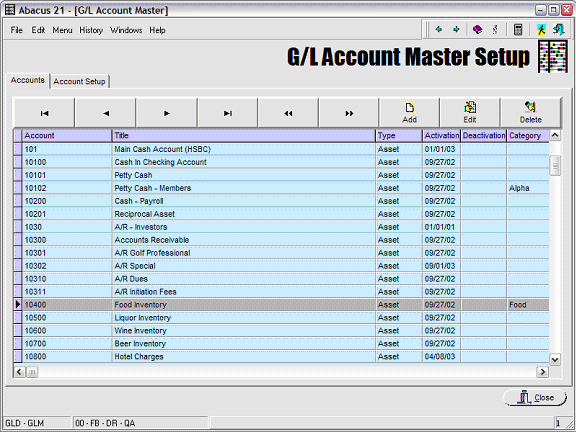
The above screen displays a portion of the already existing Accounts.
Hitting the Add or Edit Button (Edit used is this example) -- or hitting the Account Setup Tab at the top, gets to the following screen:
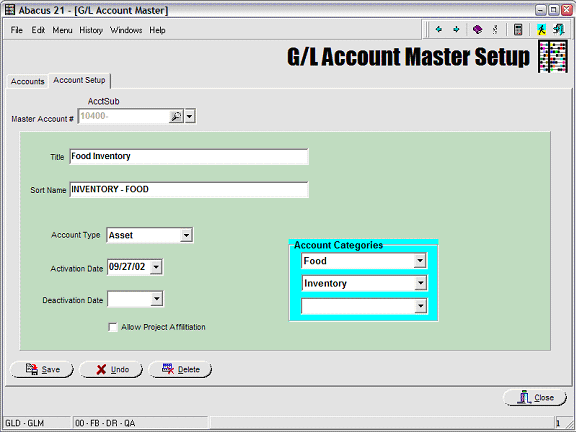
Master Account #: Enter the Account (Number) -- in its respective segments
The Search Button performs a general Search for G/L Accounts.
The Dropdown Button provides a selection list of available Accounts.
The Short Names (of the Account Segments) appear above the Account itself.
Title: Enter the Title Description of the Account
Sort Name: This defaults to an upper-case version of the Title (when initially) entered -- but can be changed by the User to be more effective for searches.
Notice is this example, the Sort Name has been re-arranged from the Title -- to reverse the sort criteria to be Inventory first and Food second... versus the Title (which put Food first and Inventory second).
Account Type: Select one of the following for this Account
Asset (natural sign is a Debit)
Liability (natural sign is a Credit)
Capital (natural sign is a Credit)
Revenue (natural sign is a Credit)
Expense (natural sign is a Debit)
Statistical (has no Debit/Credit orientation)
Activation Date: Enter the Date that this Account will first become Active.
Transactions can not be entered-posted to this Account until this Date.
De-Activation Date: Enter the Date that this Account is the be de-Activated. Optional.
Transactions can not be entered-posted to this Account on/after this Date.
Account Categories - Optional
Up to three (3) Account Categories can be affiliated with each Account.
These Account Categories are User-defined 'Categories' that can be (optionally) affiliated with each specific Account -- and subsequently used in an ad-hoc reporting context to aggregate, filter, and sort.
In this example, the Food Inventory Account is noted as being associated with the Account Categories 'Food' and 'Inventory'.
Many other Food-related Accounts (such as 'Seafood Entrees Revenue - Dinner' and 'Sandwiches Revenue - Lunch') may also have the 'Food' Category.
Many other Accounts may have the 'Inventory' Category associated with them -- such as 'Beer Inventory', 'Wine Inventory', 'Liquor Inventory', 'Parts Inventory'. 'Inventory Shrinkage', etc.
Allow Project Affiliation: Check this box if you wish to 'force' this Account (when used) to prompt for a Project ID (which will in essence be a suffix to the Account) -- used for facilitate Job Cost Project Tracking.
This is an Add-On Option to the Abacus 21 System -- and is currently reserved for future use.
Contact Abacus 21 for further details.