This section describes Abacus 21's Generic Browse Query (GBQ).
Note: Last updated on 6/18/2008
Table of Contents -
Pop-up Mode
Drop-down Mode
Match With
Start With
Wild Card
Show All
Show Top X
Show From X to Y
Basic Searching
Keyboard Navigation
Grid Features
Incremental Search
Quick Sort
Quick Filter
Export to Excel
Advanced Features (by Application)
Screen Plug-In's
Menu Plug-In's
Generic Browse Query (or GBQ for short) is a standard dialog to be used for simple searches.
The fancy  (magnifying
glass) icon indicates where an enabled GBQ search capability can be used.
(magnifying
glass) icon indicates where an enabled GBQ search capability can be used.
There are generally two types of fields where GBQ functionality will be found:
Fields where only names or descriptions will be entered and displayed.

Fields where names or descriptions will be displayed from a code lookup.

GBQ searches support two different display modes called Pop-up Mode and Drop-down Mode:
Clicking the magnifying glass icon activates the Pop-up Mode.
Clicking the down-arrow icon  activates
the Drop-Down Mode.
activates
the Drop-Down Mode.
Note in the shown examples the Pop-up Mode Button is a flat style button. Flat style buttons will make themselves apparent that they are buttons when the mouse cursor is hovered over them.
Pop-up Mode -
Clicking the magnifying glass icon activates the Pop-up
Mode.
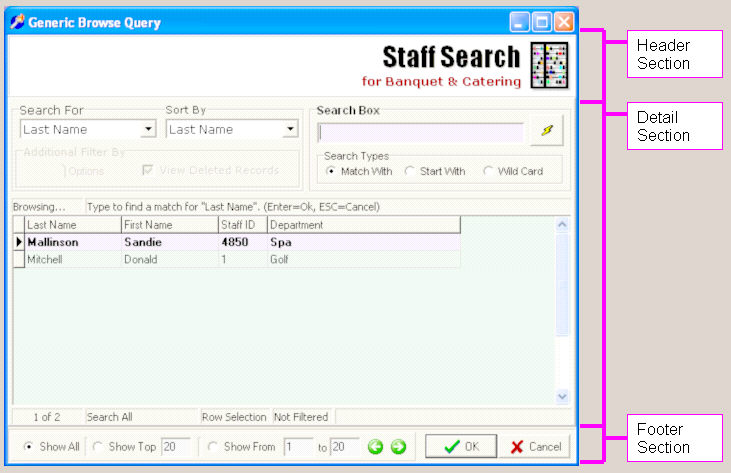
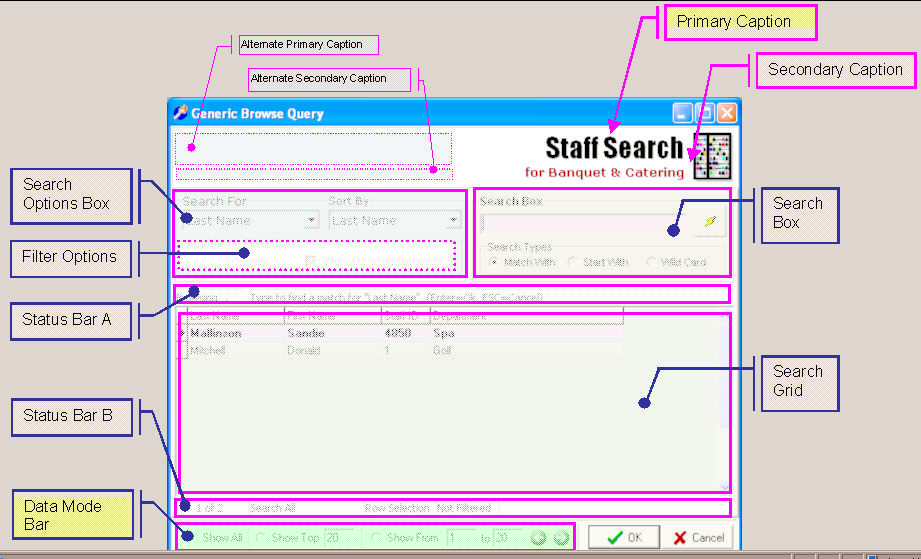
The dialog consists of various sections and areas that may be shown or hidden depending on the search being invoked:
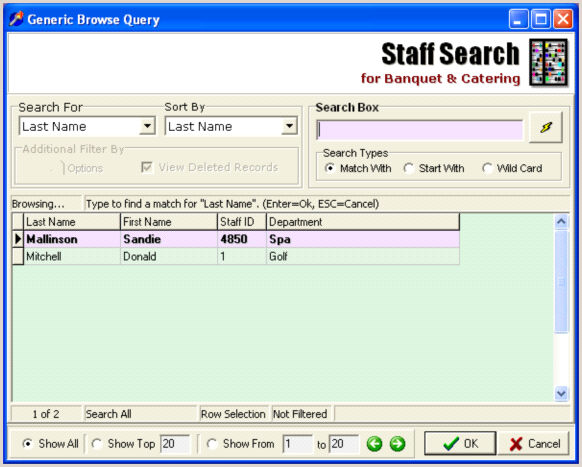
The dialog consists of various sections and areas that may be shown or hidden depending on the search being invoked:
Drop-down Mode -
The drop-down mode is the compact form of the GBQ that was designed
to be displayed like a drop-down and is activated by clicking the down-arrow
icon of the edit field. Almost
all features of the Pop-up mode are available in the drop-down mode via
keyboard input.
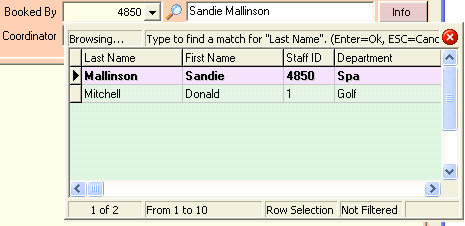
When focused within a GBQ field on the screen, clicking the down arrow or pressing the down arrow key on the keyboard will activate drop-down mode.
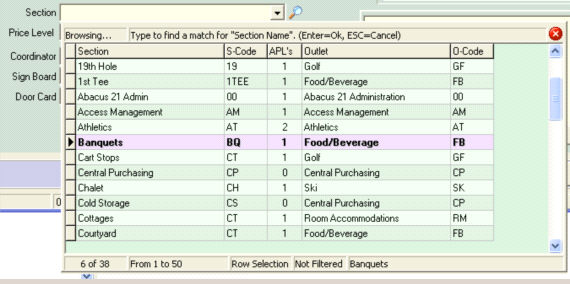
Note: When drop-down mode is available on a code input field, the default search type is based on the most relevant name or description for that code input field.
Match With – Only records, where the search entry characters match, will be returned.
Start With – All records are returned starting from the first match found.
Wild Card – All records where the data partially matches the text in the search entry are returned. This is the slowest of all the searches. The Wildcard character is '*'.
The selection in the Data Mode Bar determines how much data will show in the grid. This is referred to as a “Data Page”.

Show All – All data from the Search Mode will be returned. This is the most memory intensive of all the searches.
Show Top X – Will only return the Top # number of records for the selected search mode. Note that Sort Order becomes important with this option and will directly determine what records you see.
Show From X to Y – Will display pages of information with a limited number of records, similar to the Top Mode, however you can navigate to additional pages of records by using the next and prior buttons. If you have more than one page of information you can use the green arrows (or keyboard arrow keys) to navigate between the different pages of information. This mode is similar to searches performed on the Internet and is the most efficient for data retrieval when browsing large sets of results. For example:

Features -
Basic Searching -
The basic controls are shown below. When the GBQ dialog opens, the cursor should be in the Search Entry box. Note that at any time, if the Grid is focused and you start typing, the Search Entry box will be focused automatically and text will appear in the box.
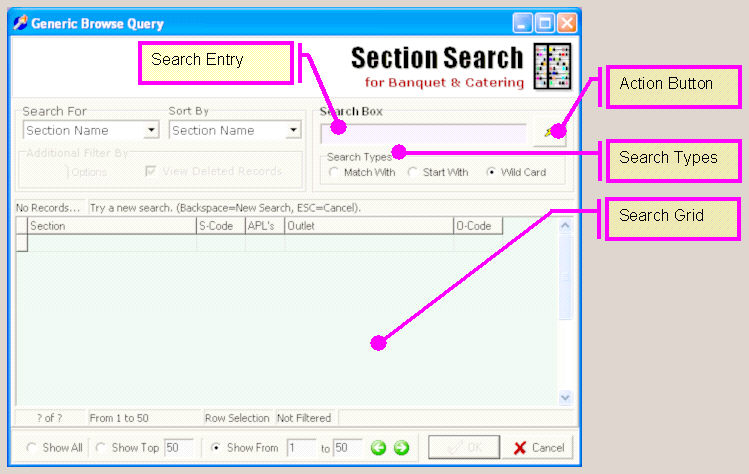
When the GBQ dialog first opens there it may not have any records selected or it may have automatically performed a “browse all” to prepare for an incremental search. (Incremental search will be covered later.)
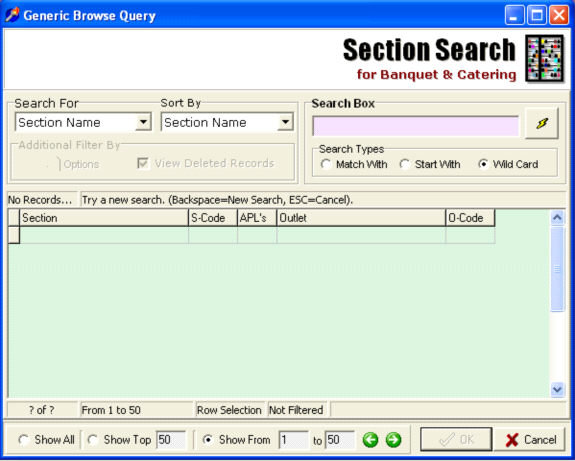
Here is an example of an empty dialog ready for a new search:
Here is an example of a filled dialog after an empty search or result of a “browse all”:
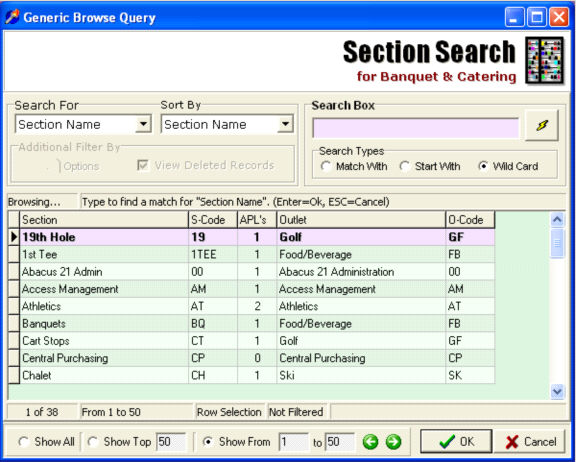
To begin a new search, simply start typing in the Search Entry box and click the Action button or press the Enter key. You will be presented with the list of possible matches based on the search that was just completed.

From here you can use the Mouse or Keyboard Arrow Keys to select the records desired. If you continue to type the Incremental Search will begin and attempt to find what you are looking for. Once the desired record is selected click OK, or press the Enter Key, to confirm your selection. Clicking Cancel or pressing the ESC (Escape) key will cancel the search.
You can begin a new search any time by replacing the Search Entry text and using the Action Button or Enter Key. Using the Backspace Key to erase all the text in the Search Entry box will clear any results and start a new search as well.
Incremental Search -
Incremental Search is an automatic feature in the GBQ grid and will go into effect as soon as there are results in the grid. The field specified in “Search For” will be used in the search. The “Sort By” setting should also match to achieve the best results.
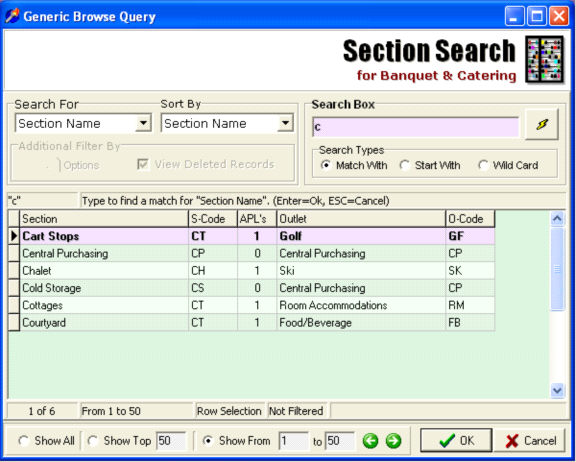
Continuing to type after starting a search, or from a “browse all” mode, will activate the incremental search. You will be taken to the record automatically if it was found.
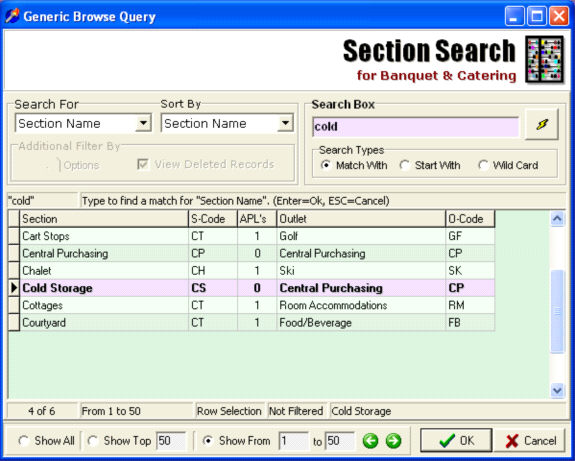
Note that if the Data Mode is set to “Show Top X” or “Show From X to Y” and your data is not in the page that was returned, incremental search will not be able to find your record. You must either move to another page or refine your search so the data would be in the data page. Incremental search can only find records if they exist in the data page you are currently viewing.
Keyboard Navigation -
Keyboard Use is always available in both Display Modes.
Enter Key – Different Behaviors depending on where you are in the search phase.
Escape Key (ESC) – This is the same as clicking the Cancel button or the X button in drop-down mode.
Up & Down Arrow Keys – After a search is started you can navigate to select a desired record.
Backspace Key – Clears out text from the Search Entry box. Once the text in the Search Entry box is empty then the pressing this key will start a new search.
If Data Mode is “Show From X to Y”
Left & Right Arrow Keys – After a search is started, and there are actually multiple pages of data, the keys will take load the different pages of data. Going past the last page of data will start you back at the first.
Quick Filter -
Quick Search is invoked by using the right-click pop-up menu on the column you want to search on. It is used only to further refine the results of your search.
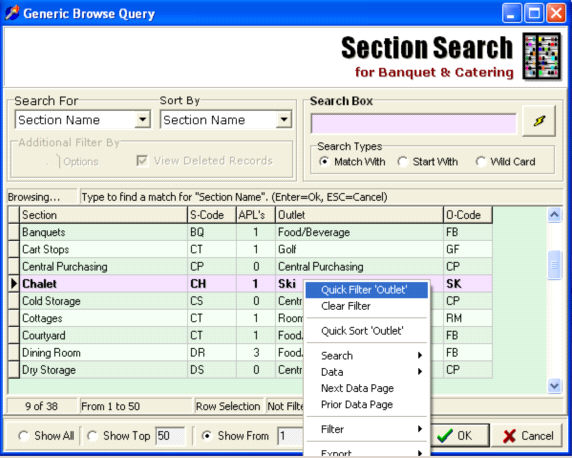
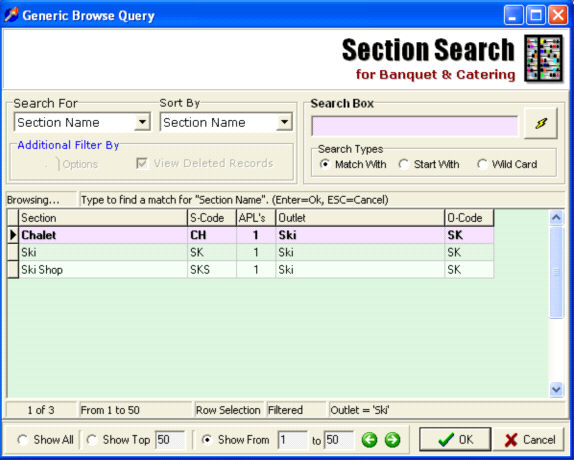
This feature is only effective on the current data page you are viewing.
Quick Sort -
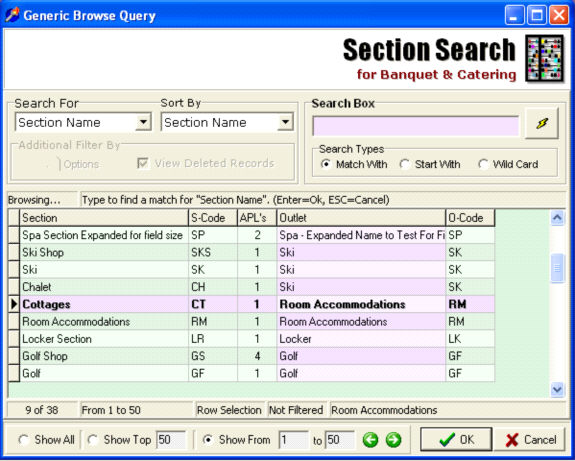
Clicking on any column header on the grid will invoke the Quick Sort. It is used only to further refine the results of your search. Repeatedly clicking on the column header will toggle the sorting mode between ascending and descending order.
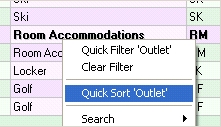
Quick Sort can also be invoked by using the right-click pop-up menu on the column you want to sort on.
This feature is only effective on the current data page you are viewing.
Export to Excel -
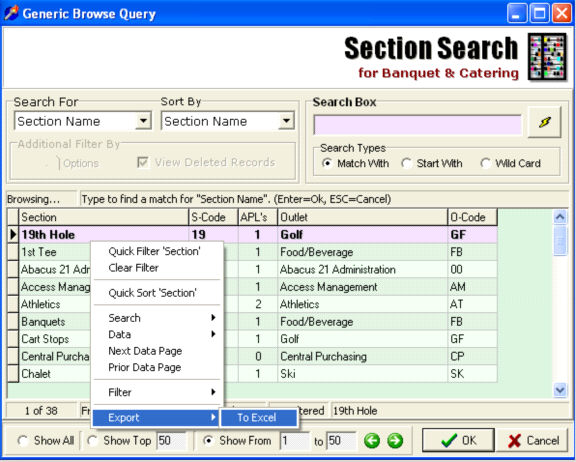
In some cases you may find it necessary to export the results of searches to Excel.
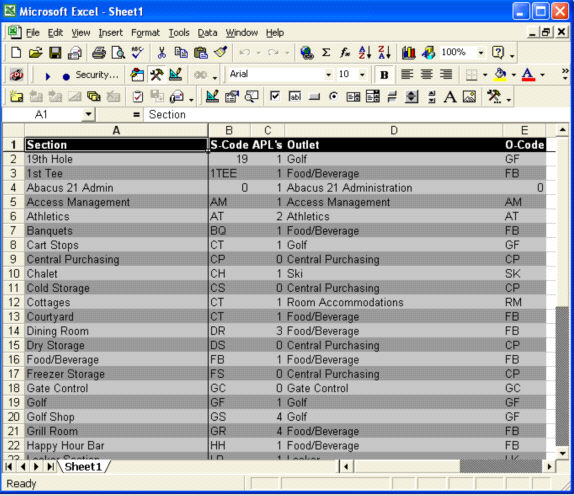
Screen Plug-In's -
Occasionally in System 441 you will find some enhanced differences in the behavior of GBQ. In Banquet & Catering there are two specific examples where Banquet & Catering will modify add additional sub-screens to GBQ searches.
For Section searches Banquet & Catering will bring you to a sub-selection for Price Level.
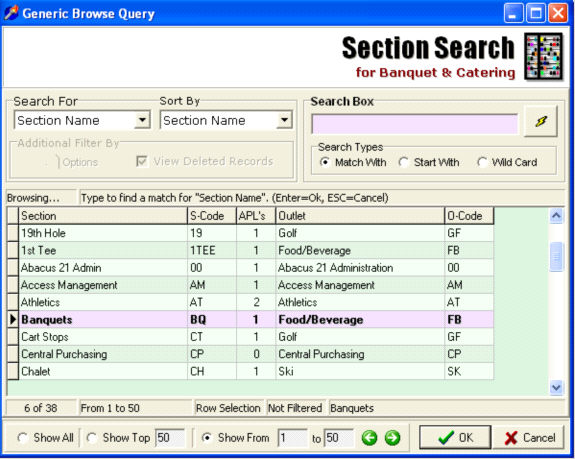
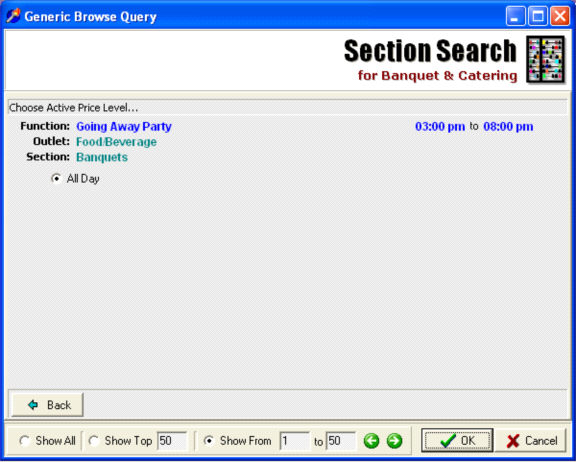
For Item Searches, Banquet & Catering will prompt for additional information:
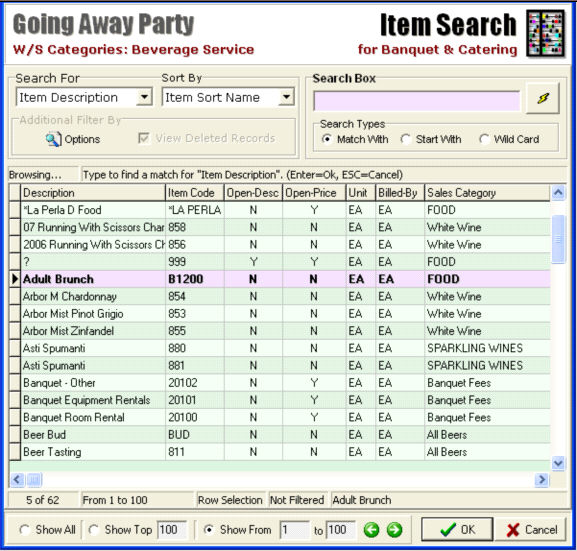

Menu Plug-In's -
Occasionally in System 441 you will find some enhanced differences in the behavior of GBQ. Sometimes Applications can add additional pop-up menu choices.
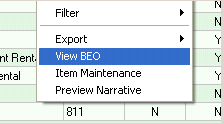
For example, Item Searches for Banquet & Catering add a View BEO option: