
The following instructions provide an example of how to install a) the Interbase Client and b) the Abacus 21 Client on a Workstation.
This example utilizes the following 'example-specifics' that should be altered to your particular Installation vernacular:
TAC is an abbreviation for the Club/Resort's Name -- and a comparable notation will be applicable (and should be substituted in) for your Installation.
TAC-SVR07 is the Server Name -- for which your Sever Name should be substituted.
Disk 1041 (Abacus Client Install CD) matches the last number in the System 441 Version 3.9.1.1041 (which we call "39.1" for short). The last number in the System 441 Version will always be sequential, and matches the number in the database as well. (Folders and zips in the production folder area are also keyed off of this number.)
Version 3.9.1.1041 will be replaced by the relevant Version No. for the Install/Upgrade.
IB7.51 relates Interbase (Abacus 21's Database) version 7.51 -- and will, in general, be 'replaced' with the most current Release Level of Borland's Interbase.
Please check with Abacus 21 Support for further assistance.
Interbase Client Installation -
First, browse to the Abacus 21 Folder on the TAC-SVR07 Server (D drive). From here go into the TACInstalls folder. Under this folder you should see the Installation folders for Borland (Interbase) and Disk 1041 Client Install (Abacus 21 System 441 Client).
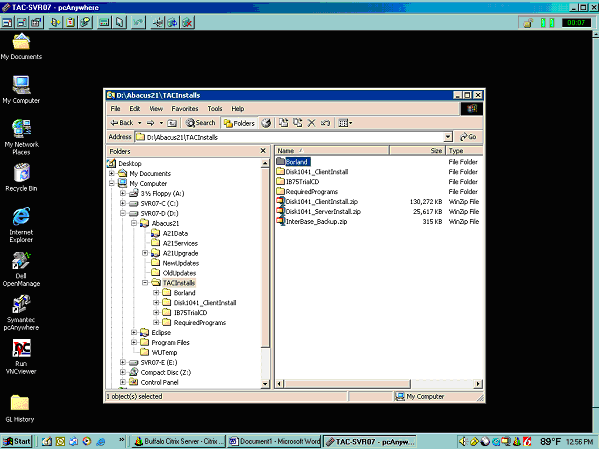
Go into the Borland Folder. Click on the IB75.1 Folder and Select the Install_ Windows.exe.
Select the Install Borland Interbase 7.5 Server Option (even though this is for the Client PC).
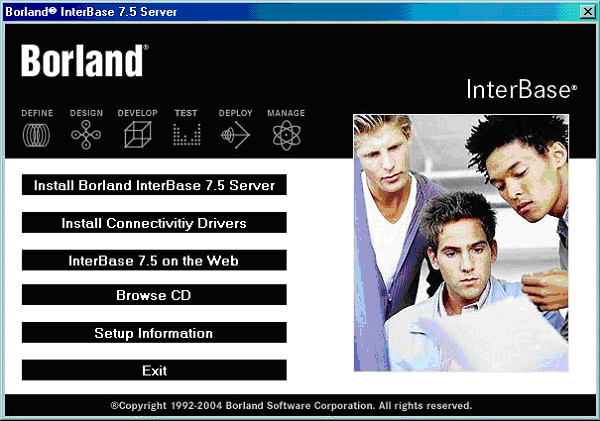
Follow the Wizard through the next steps:

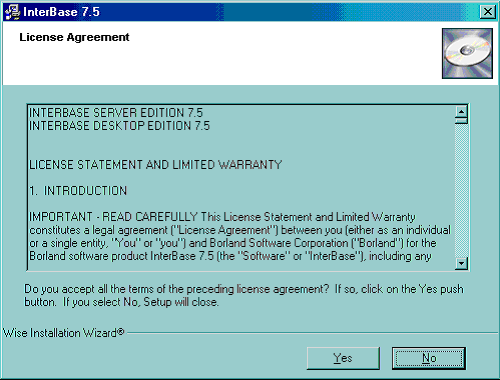
Select 'Yes' to the License Agreement.
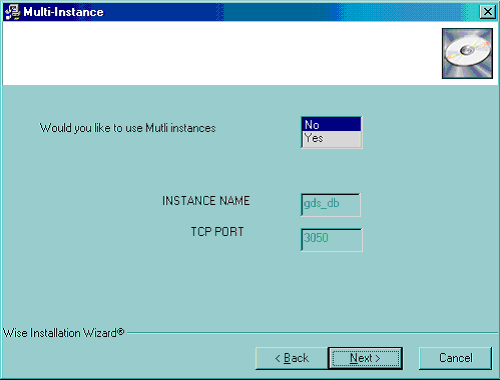
Select 'No' to the Multi instances.

Select 'Client Only'.

Accept the default location and click 'Next'.
You will see the files Installing. Click 'Finish' when the Finish button appears.
You have now completed the Interbase portion of the Install.
Next you will install the Abacus 21 System 441 Client.
Abacus 21 Client Installation -
Under the TACInstalls folder, select the Disk1041_Client Install folder. Within that folder select the setup.exe program.
Double Click the Setup.exe to begin.
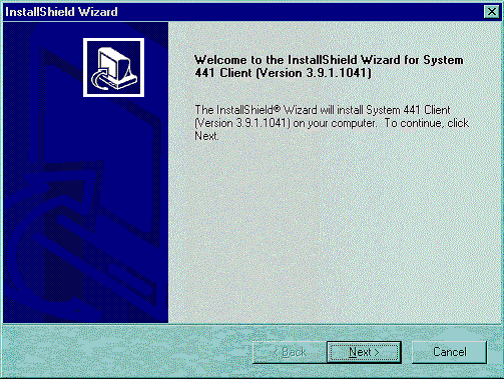
Click the 'Next' button.
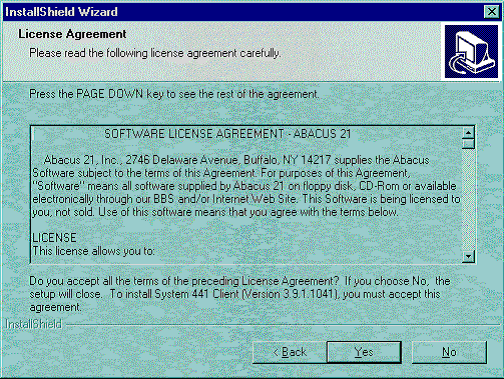
Accept the License Agreement.

Accept the default Destination Path and Click 'Next'.

Be sure all of the above are Checked. If, by chance, you see Borland Interface as an Option, please UNCHECK it.
The 'Borland Interface' would be version 6.0 -- and we do not want to overwrite Version 7.5 (it was included on some of the CD's).
Click 'Next'.

Accept the defaults and click 'Next'. The programs will begin installing.
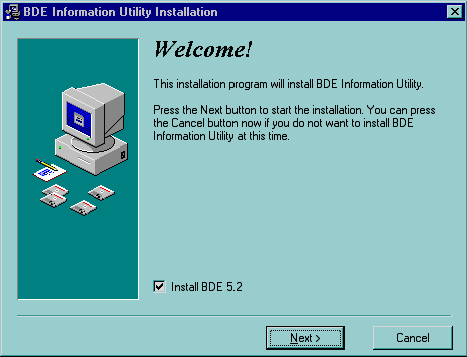
The BDE Utility will now install. Be sure that the Install BDE 5.2 is checked and click 'Next'.
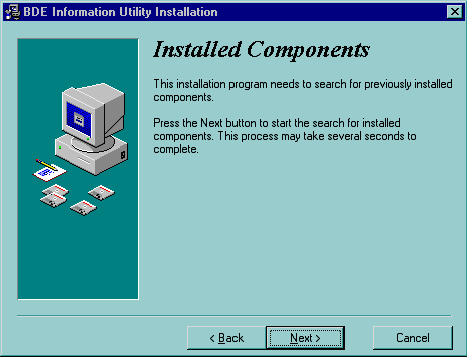
Click 'Next'.

Accept the defaults and Click 'Next'.

Click 'Next'... and you will see the programs installing.
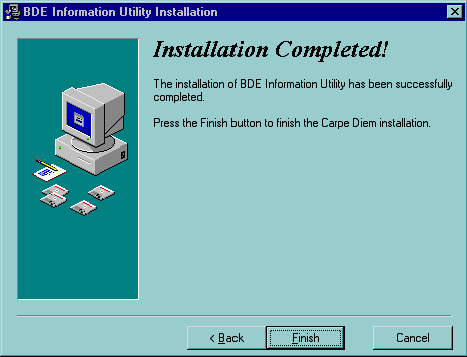
Click 'Finish'... and you will now see other programs installing.
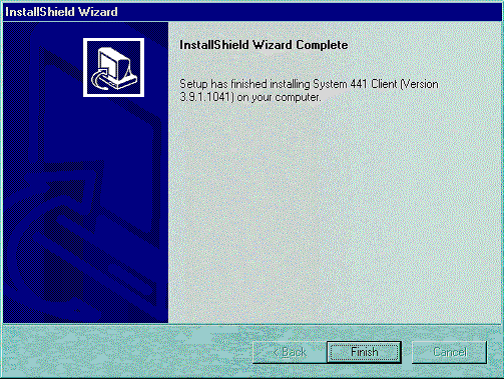
Click 'Finish'.
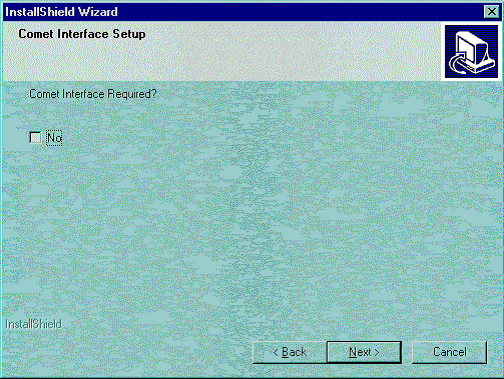
Unless you still have remnants of Abacus 21's older Legacy System still running, check 'No' to Comet Interface. Click 'Next'.
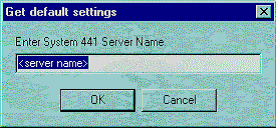
Enter the Name of the Server where Abacus21.ib is installed.

The Abacus Install Helper Utility will pop up.
On your System, since you will have entered the proper Server Name, all of these fields will automatically fill in. You should just have to click the 'Apply Profile' Button at the Bottom and all of the red check marks will turn green. When done use the 'X' to close.
You should now see the Abacus System 441 Client Icon on the Desktop.
Launch the System 441 Program.
Run through all prompts and allow the program to fix items it reports. (Accept the defaults)
When it stops fixing itself, it will for check for updates.
Updates will begin copying and applying.
When it stops updating itself, it will for check for fixes.
Any Fixes will begin copying and applying as well.
When it completes you will see the Abacus 21 System 441 User Id Sign-In Screen.
Abacus 21 Client Installation is complete.
The Installation of the Client Workstation software is now complete.