
The section of the documentation describes the setups associated with Payment Types (otherwise known as Tenderment Types).
Payment Types are used in several application areas -- including Point-of-Sale, Room Accommodations, and Accounts Receivable.
See the associated Payment Type Report (associated with these Applications).
There are five styles of Payment Types:
The setups associated with Payment Types can be broken down into two levels:
The controls that are common to all of the styles will be discussed first -- followed by the controls that are specific to each respective style.
Controls Common to all Payment Types -
Payment Types are first established globally -- and then they are 'activated' for individual Sections.
The following screen illustrates the configuration of a Payment Type:

The only information defined at the global level is as follows:
Payment Type Code – Assign a six-character Code to represent this Payment Type.
Description – Enter the Description for this Payment Type. Payment Types will normally be selected from a dropdown using this description.
Style – Select one of the following Payment Type Styles:
Accounts Receivable: To post the charge amount to a Client’s Statement.
Cash: Cash and other Tenders that do not require special handling by the system (eg. Coupons, untracked Gift Certificates, etc.).
Credit Card: Only if the system is to do on-line authorization. Otherwise set up as Cash Style.
Vouchers: Gift Certificates, Gift Cards, and Credit Book.
Hotel: The payment is to be charged to a Hotel Room/Folio. (A Hotel interface must first be defined.)
Report Column – Identify the column of the Payment Detail Report where receipts of this Payment Type should be included. (These Columns were defined in the Payment Type Report Setup.)
Payment
Type Section Activation –
Payment Types must be activated in each Section where the Payment Type is to be accepted.
The names of the Sections where the Payment Type is already established are displayed in black.
The Sections where the Payment Type is not established are displayed in gray.
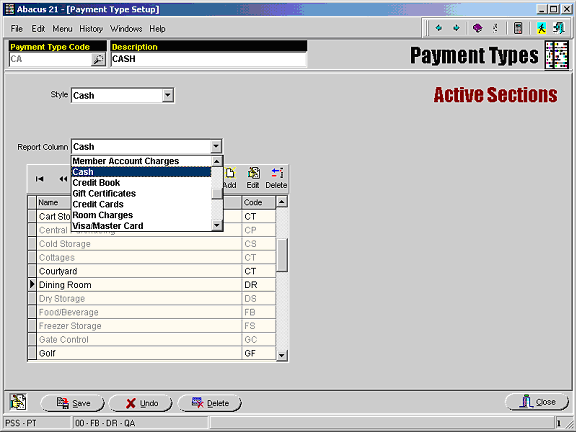
You may 'Edit' the Sections where the Payment Type is already established. But to establish the Payment Type in a Section where it has not previously been established, you must 'Add' the Section.
Section Specific Parameters –
The majority of the parameters are the same for all styles. These will be described first. The Style Specific parameters will be described later.
The Section-specific setups are broken down into several areas:
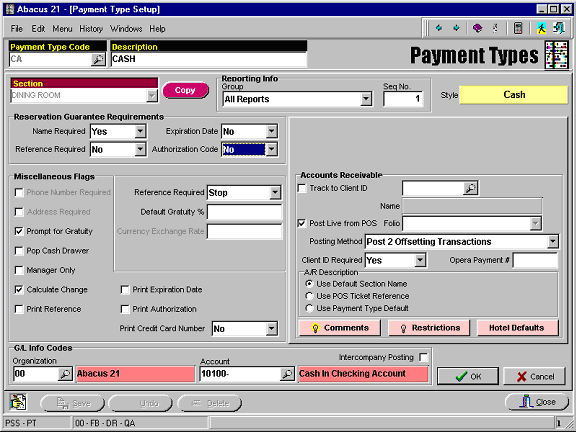
Reservation Guarantee Requirements – The parameters in this area are used when this Payment Type is used as a guarantee for a Reservation rather than as a payment.
For each field indicate:
Yes – an entry is required.
No – this field will not be available for use.
Stop – the field is available for entry but is not required.
Name Required – Indicate the requirement for the entry of a Name.
Reference Required – Indicate the requirement for the entry of a Reference – a serial number or card number or etc.
Expiration Date – Indicate the requirement for the entry of an Expiration Date.
Authorization – Indicate the requirement for the entry of an Authorization Code.
Miscellaneous Flags – Check the associated box if the feature is desired or enter the appropriate value for the parameter. Check the desired parameters:
Phone Number Required – If this option is checked the system, will ask the operator for the entry of the Client’s Phone Number. (For future use)
Address Required – If this option is checked, the system will ask the operator for the entry of the Client’s Address. (For future use)
Prompt for Gratuity – When this option is checked, the operator will be prompted for the entry of a Tip/Gratuity amount.
Pop Cash Drawer – When a ticket is completed with a Payment Type that has this option is checked, the Cash Drawer will be open (if a Cash Drawer is configured).
Manager Only – Only Staff with the authority to use Manager-Only Payment Types will be allowed to use this Payment Type when this option is checked. (Or approve use of the Payment Type if Manager approval is required.)
Calculate Change – When this option is checked, the operator will be prompted for the amount tendered -- and change will be calculated.
Print Reference – Check this option if the Payment Reference is to be printed on the POS Ticket.
Print Expiration Date – Check this option if the Expiration Date entered on the payment line is to be printed on the POS Ticket.
Print Authorization – Check this option if the Authorization entered on the payment line is to be printed on the POS Ticket.
Reference Required:
Yes – if the entry of a Reference is to be required.
No – If the entry of a Reference is not allowed.
Stop – If the entry of a Reference is optional.
Default Gratuity % - Enter the Default Gratuity Percent.
Note: the operator will still be allowed to override the default-calculated amount.
Currency Exchange Rate – Enter the Exchange Rate between this Payment Type and the base currency of the system. (For future use)
Print Credit Card Number:
Yes – if the Credit Card Number is to be printed on the POS Ticket.
No - if the Credit Card Number is not to be printed on the POS Ticket.
Masked – If only the last 4 digits of the Credit Card Number are to be printed on the POS Ticket.
G/L Info Codes:
Organization – Enter the Organization for the G/L posting that is created when this Payment Type is used.
Account – Enter the Account for the G/L posting that is created when this Payment Type is used.
Inter-Company - If this option is checked, a Target Company is requested... and two additional G/L Accounts in that Target Company may be identified for the two off-setting G/L Inter-Company postings that will be made automatically in the same amount (in addition to the normal G/L posting that would be made for the payment):

Any Payment Type has the capability of posting to Accounts Receivable. For transactions settled to Payment Types other that 'Accounts Receivable' style tenders, there are still reasons that may be appropriate to impact A/R.
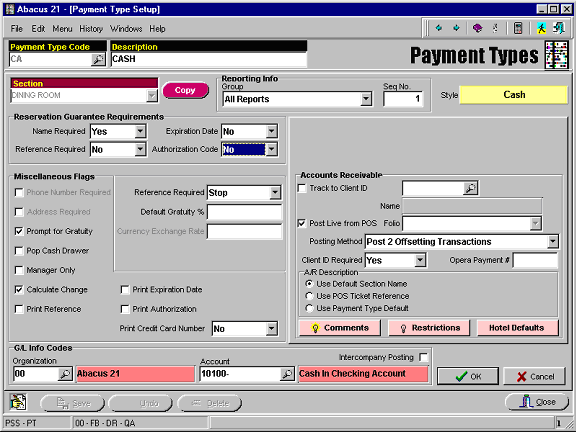
Track to A/R Account – For any Payment Style other than A/R, if a fixed third party will be responsible to reimburse the transaction amount (Credit Cards are a good example – but theoretically any Payment Type other than A/R can be posted to a third party), this can be posted to a fixed Client and Folio. Check this box if this functionality is desired.
Track to Client ID - Identify the Client that will be responsible for payments posted to this Payment Type.
Folio – Identify the Folio of the 'Track to Client' where the transaction should be posted.
Post Live from POS – Check this option if the A/R transaction should be immediately posted from POS to A/R when the POS transaction is completed -- otherwise it posts at the time of POS Registration
Posting Method – For all Payment Styles other than A/R, it may be necessary to post to a Client’s A/R in order to give the Client credit against their Minimum Spending requirements.
The Client has already paid – so they do not actually owe anything, so the net balance posted in all cases would be $0.
There are three options:
Post Nothing – Select this if this feature is not desired.
Post 0 Dollar Transaction – Used in conjunction with A/R Detail Buckets:
Select this if a single $0 transaction should be created.
Note that with this method, the A/R Detail breakdown will carry the full amounts from the POS Ticket – pro-rated if there were split tenders on the ticket.
Post 2 Offsetting Transactions – Select this option to create two offsetting transactions that net to $0.
The first transaction would be exactly the same as if this was an A/R Style Payment – complete with the A/R Detail Bucket breakdown.
The second transaction is like a Payment applied directly against the first.
If either of the posting options is selected, the “Client ID Required” field will be forced to “Yes”.
Client ID Required – This option may be forced on, but otherwise the system can be set to allow the identification of a Client on the Payment. Select the desired option:
Yes – The operator will be required to identify a Client when this Payment Type is used.
No – The operator will not be given the opportunity to identify a Client when this payment Type is used.
Stop – The operator will be given the opportunity to identify a Client, but a selection will not be required.
Opera Payment # - This field is named for Fidelio (PMS), but may be used with various PMS systems to carry their payment identifier.
A/R Description – When an A/R transaction is created from POS, there are three ways to create the description of the transaction:
Use Default Section Name – The name of the Section will be used as the A/R Transaction Description.
Use POS Ticket Reference – If a Reference is entered on the Payment, it will be used as the A/R Transaction Description. Otherwise the name of the Section will be used.
Use Payment Type Default – The Description entered here on the Payment Type will be used as the A/R Transaction Description. When this is checked, a field will appear to the right for the entry of the Description.
Comments –
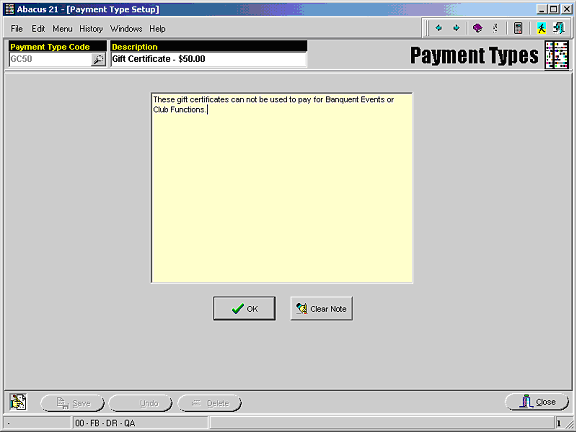
These comments are available for viewing when the Payment Type is used in POS:
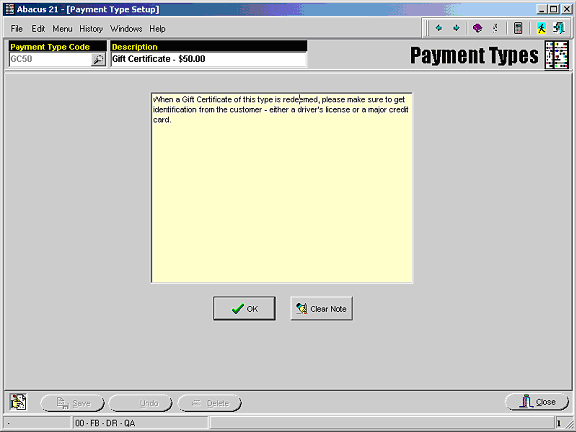
These restrictions are available for viewing when the Payment Type is used in POS:
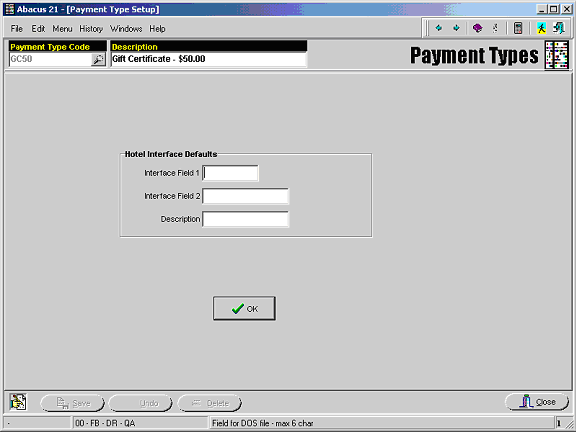
These entries will vary based upon the Property Management System (PMS system) and the specific installation requirements.
These fields are typically associated with 'mappings' to PMS Department or Master Account References.
Please contact Abacus 21 for requirements for your specific installation.
Controls associated with specific Payment Type Styles –
There are some controls that are unique to each specific Payment Style:
The setups associated with each respect style will be described below:

Create On-Accts – Check this option if negative Payments of this type should be posted as On-Acct to the Client’s A/R -- so as to apply to balances like Cash Receipts.

Credit Card Prefix Codes – Each Credit Card type can be identified by the first few digits of the card number. These prefix codes can be identified here so that when a card is swiped in POS, the system can automatically determine the Payment Type:
Specify the Start and End of the Prefix code ranges that are associated with the Credit Card Type.

Required Credit Card Info – Indicate the functionality for each of the Credit Card related fields:
Expiration Date – Indicate how the operator should enter the Expiration Date:
Required – The operator will be required to enter a valid Expiration Date for the Credit Card.
Prompt – The operator will be prompted for the entry of an Expiration Date, but an entry will not be required.
Available – The field is available for the entry of an Expiration Date, but the operator will have to specifically go to the field to make an entry.
Disable – The field is disabled and the operator will not be allowed to make an entry.
Authorization Code - Indicate how the operator should enter the Authorization Code:
Required – The operator will be required to enter a valid Expiration Date for the Credit Card.
Prompt – The operator will be prompted for the entry of an Expiration Date, but an entry will not be required.
Available – The field is available for the entry of an Expiration Date, but the operator will have to specifically go to the field to make an entry.
Disable – The field is disabled and the operator will not be allowed to make an entry.
Credit Card Verification Required – Check here if the system should perform an on-line authorization upon completion of the POS transaction.
Print Credit Card Receipt – Check here if a separate Credit Card Receipt should be printed on the POS Ticket printer.
Mask Credit Card # on Receipt – If the Credit Card number is to be masked on the Receipt (leaving only the last four digits exposed), check here.
Print Credit Card Name on Receipt – Check here if the Name retrieved from the Credit Card should be printed on the receipt.
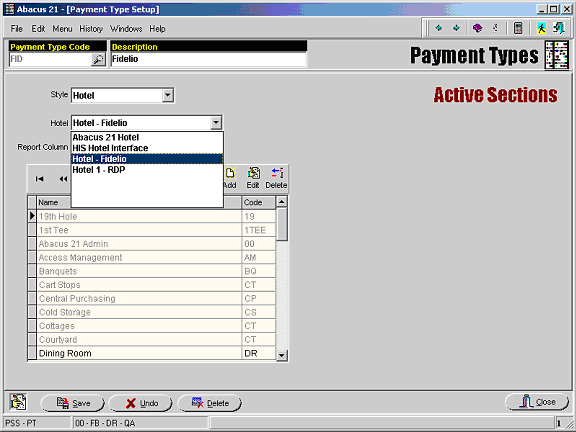
Hotel – Indicate which Hotel Interface (as defined in the Hotel Interface Setup) with which this Payment Type is associated:
Hotel Interface Defaults – Enter the appropriate defaults – Entries vary based upon your specific installation requirements. Check with Abacus 21 for appropriate settings for your installation:
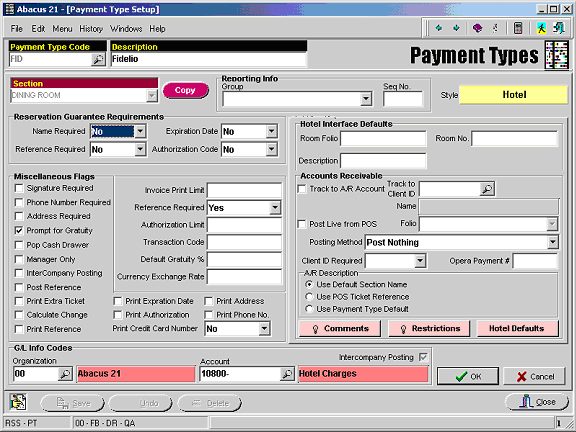
Room Folio – Enter the default Room Folio – if a Default Room Number has been defined and is appropriate.
Room Number - Enter a default Room Number.
Description – Enter a default Description.
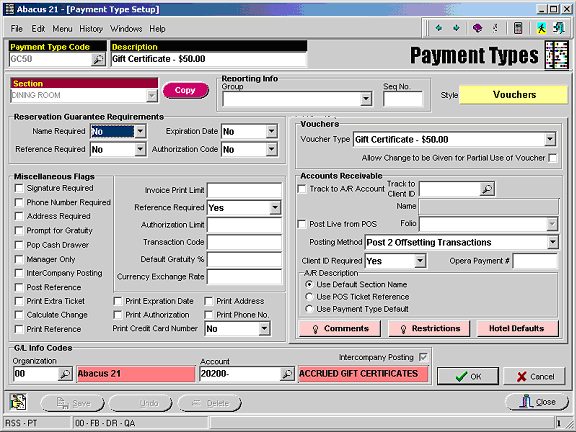
Voucher Type – Indicate the Voucher Type (as defined in Voucher Type Setup) that is associated with this Payment Type.
Allow Change to be Given for Partial use of Voucher – Check here if partial use of this Voucher is allowed... otherwise the excess balance of the Voucher will be written off when the Voucher is partially used.
This style is the most generic style available. There are no interfaces with other systems or modules. In addition to cash of various Currencies, this style can be used for such Tenderments as Coupons, externally tracked Gift Certificates/Cards, or anything that does not require system tracking.
There are no additional fields that are available in the definition of this style of Payment:
