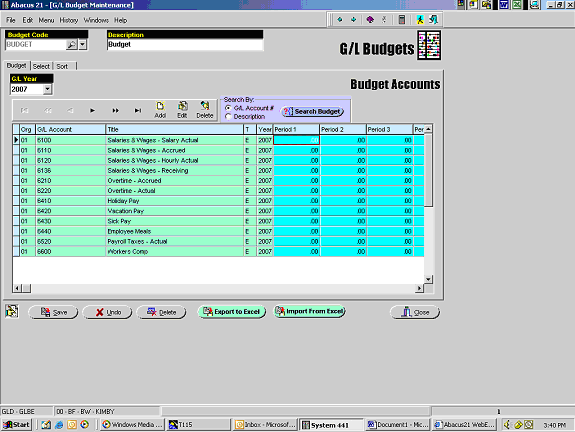
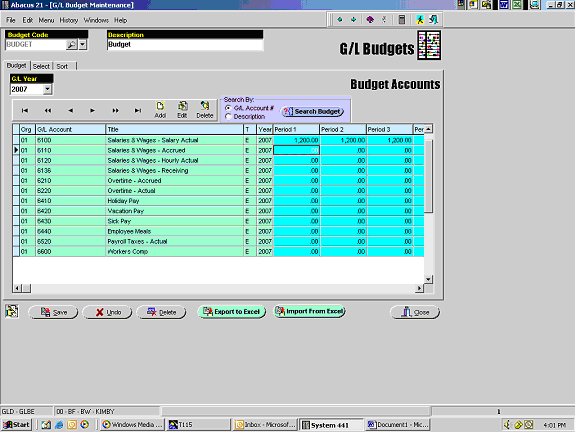
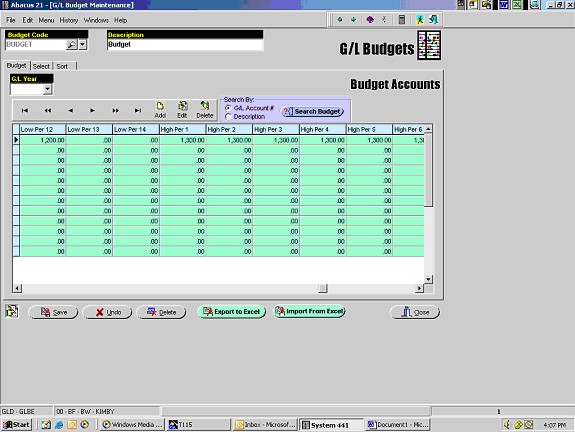
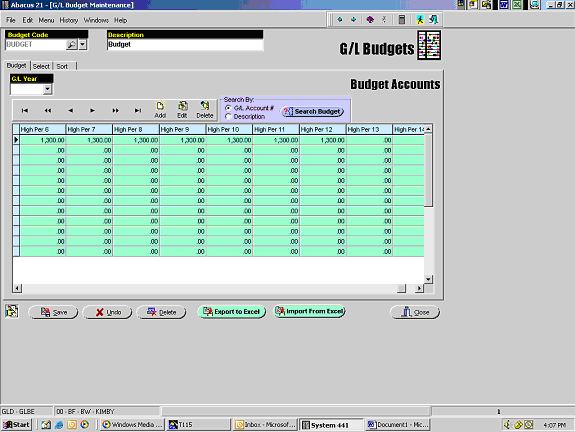
The Abacus 21 General Ledger System has the capability of handling per-Account Budgeting.
Any number of Budget 'Variations' can be establish -- which are differentiated by a Budget Code (and its Description).
Examples of Budget Codes are:
Main Budget (used in the illustration below)
Conservative Budget
Aggressive Budget
Preliminary Budget
Final Budget
Published Budget
Internal-Only Budget
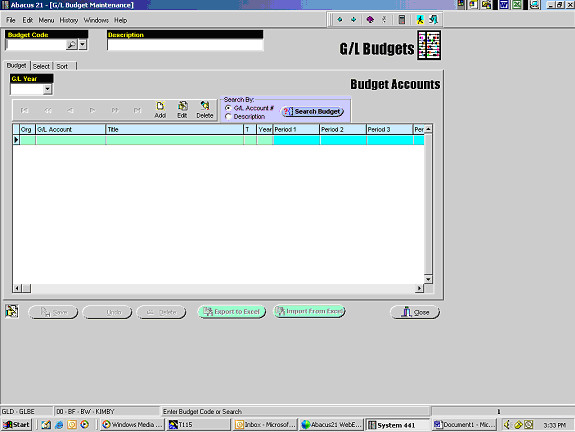
A Budget (Code) can accommodate multiple (Fiscal) Years of Budgets -- and Budgets are thus defined (within a Budget Code) by: Fiscal Year, Organization, Account... and then each of the respective Accounting Periods (for that Year-Org-Account):

Per Budget Code, per Year-Org-Account, the following entries are possible:
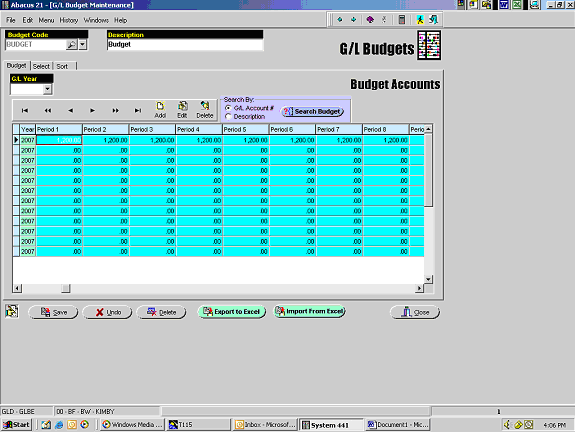
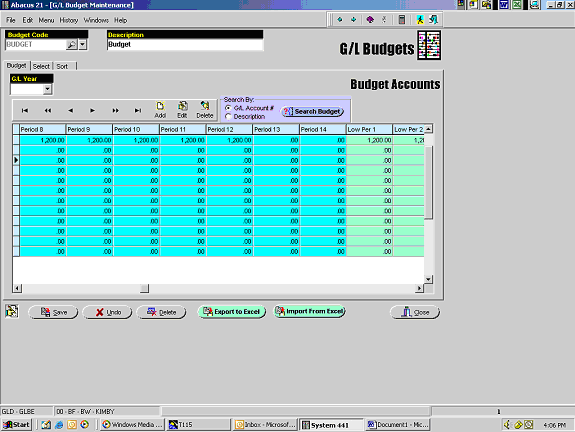
Budget Amounts for each possible Accounting Periods 1-14 as defined in Accounting Periods Setup.
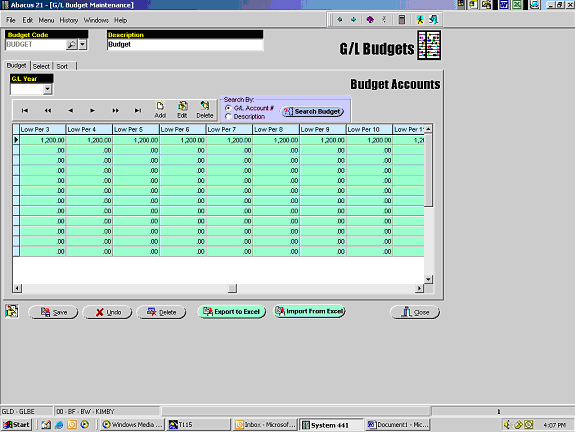
Low-Amount thresholds for each of the possible Accounting Periods 1-14.
High-Amount thresholds for each of the possible Accounting Periods 1-14.
There is also an optional provision for noting 'Actuals' for the Accounting Periods 1-14.
The Budget System also has the ability to:
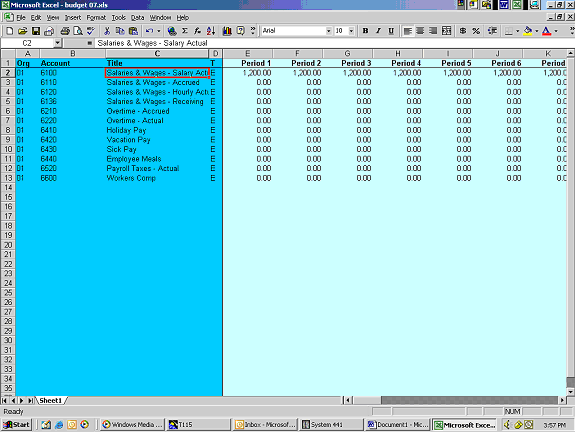
Export Actuals (and Budgets) into a Budget Worksheet (Excel Spreadsheet)
For example, this Year's Actuals can be Exported & Copied to be next Year's Budget (for 'starters')
Sort the 'View' of Budgets
Import Budgets from an Excel Spreadsheet
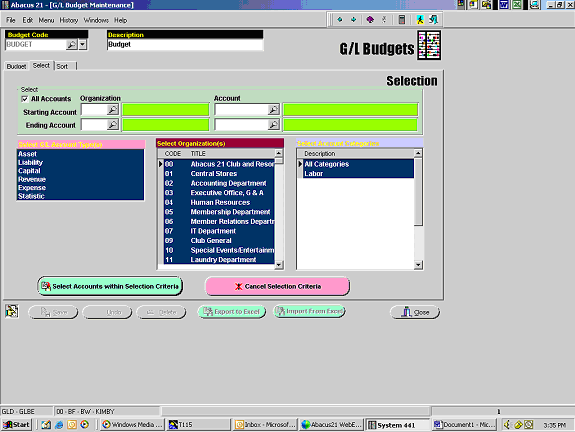
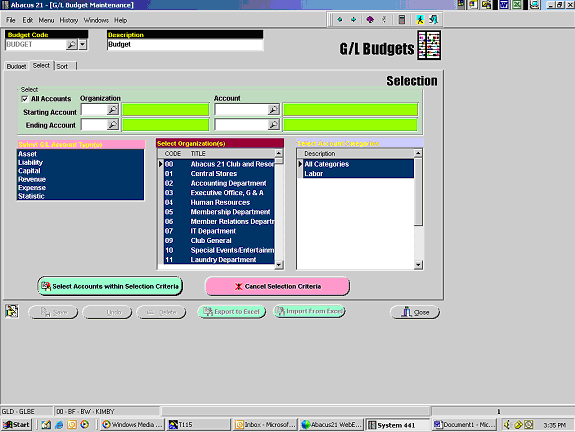
Use the 'Select' tab to specify what is desired to be exported:
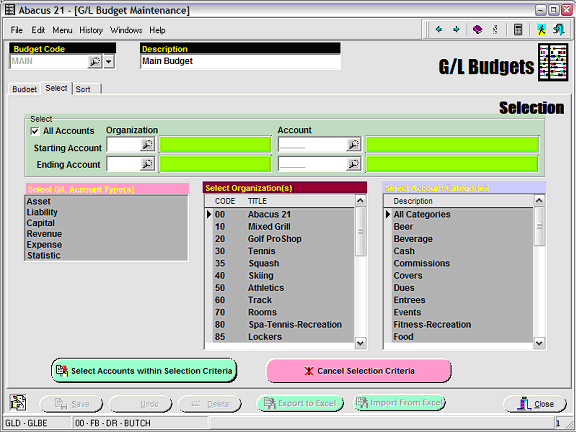
Notice that Selection Criteria include:
All Accounts or an Account Range (Defined by Org and Account No. Ranges)
One or More Account Types (Asset, Liability, Capital, Revenue, Expense, Statistical).
One or More Organizations
One or More Account Categories
Abacus 21 provides a Excel Spreadsheet Template (Budget.xtl) that must be used to create individual Budget-entry Spreadsheets (in order to be later imported into Abacus 21's General Ledger System).
The following Import-Update conventions are used when importing Budgets from a Spreadsheet:
If an Account on the Budget Import Spreadsheet already has an entry in the selected Budget for the indicated Year, the entire Budget record in the system will be replaced by record in the Spreadsheet.
If an Account already has a Budget record defined and there is no 'import' record referencing the Account, the existing Budget record will remain unchanged.
If there are two records in the Import Spreadsheet referencing the same account, the first record will be replaced with the second record.
Note that because of this functionality, it is possible to develop & import Budgets in 'Departmental chunks'... as well as to import 'revisions'.
Budget Upload/Export in System 441 -
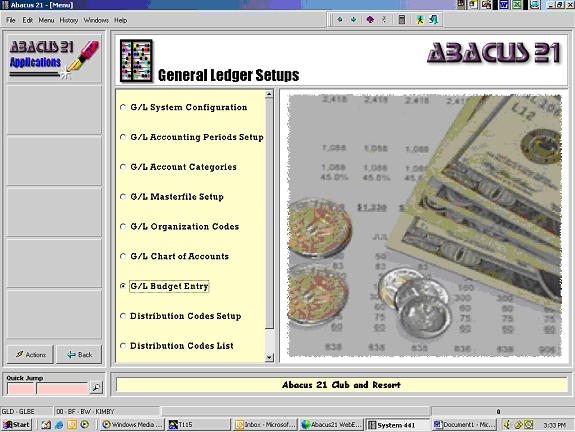
Quick Jump to the GL4 Menu – General Ledger Setups – G/L Budget Entry option.
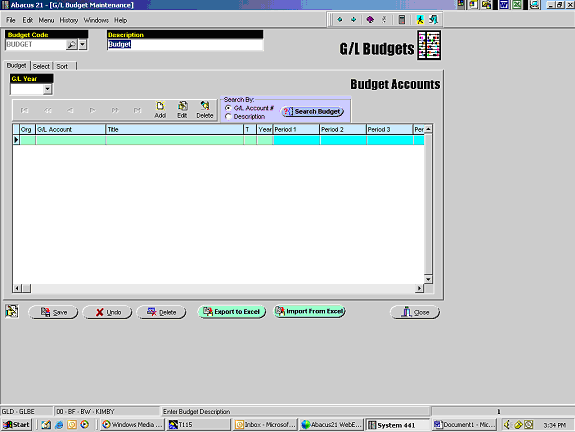
Create a Budget Code such as “Budget” and enter a Budget Description.
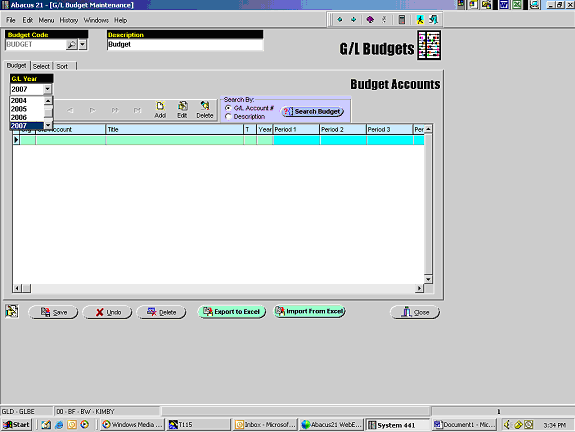
From the G/L Year drop down window, select the Budget Year.
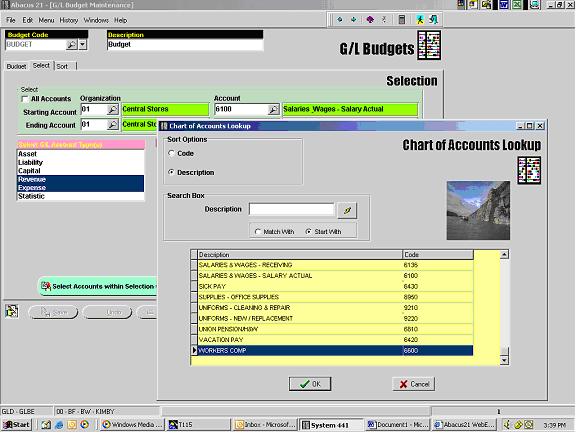
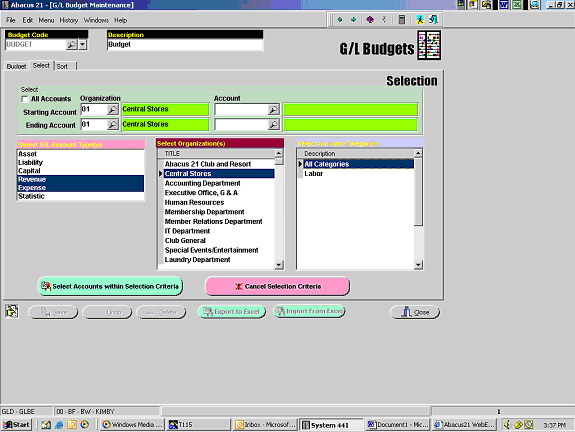
Choose the “Select” tab to select the Department Code and G/L Account number to be included in the budget. Or, check the “All Accounts” box and all Organization Codes and Accounts will be included.
Choose the Account Types desired. Multiple Types may be selected by highlighting the Type while holding down the Control button on the keyboard. Select the Organizations and Account Categories to be included.
Once the criteria has been selected, click on the “Select Accounts within Selection Criteria” button and the hourglass will appear while the accounts are pulled into the worksheet on the screen.
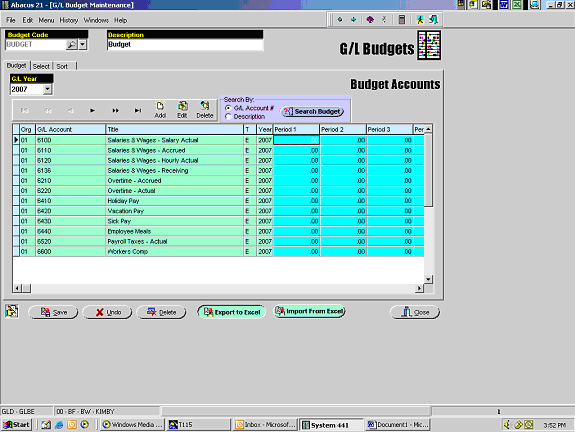
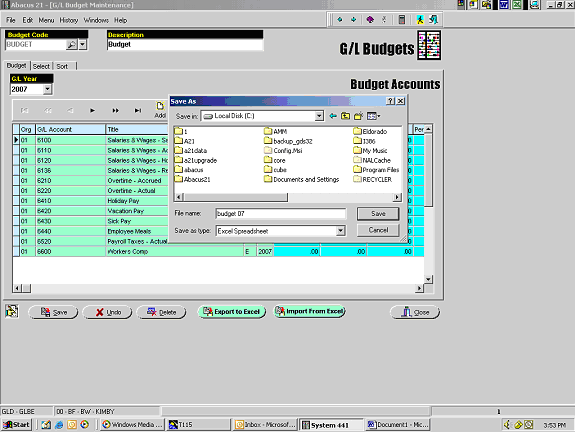
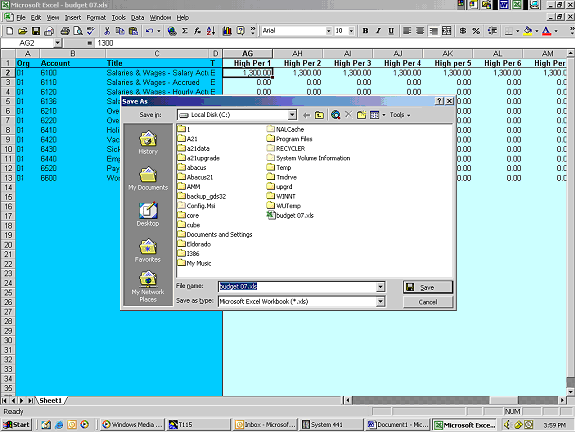
Once the Accounts have been pulled into the worksheet, click on the “Export to Excel” button and choose the Path and File Name for this file.
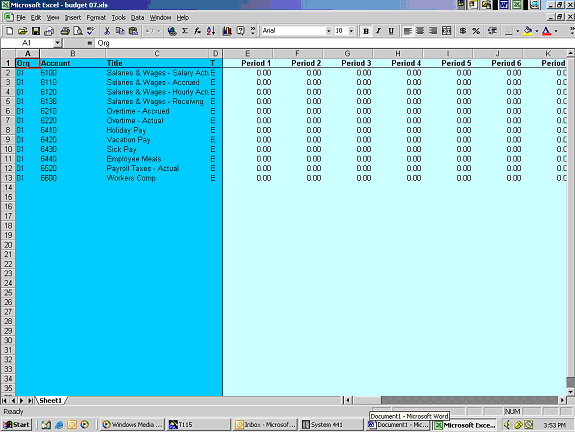
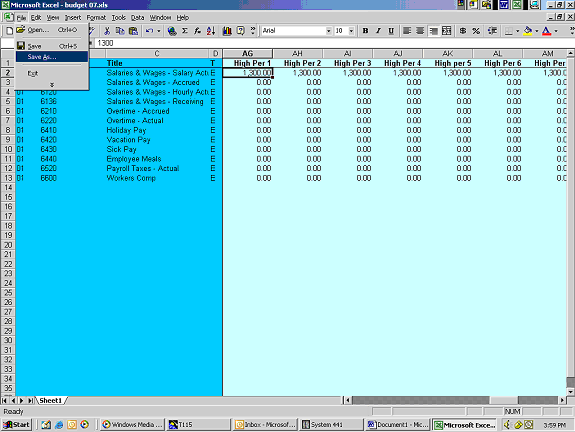
Once the file is saved, an Excel spreadsheet will appear on the screen with all the selected accounts along with fields to enter budget information. For each Account, regular Budget figures can be entered for each period along with low and high Budget figures if desired.
When all figures are entered into the Spreadsheet, save the file (either overwrite the original file you exported, or save the completed Budget file as a new file.
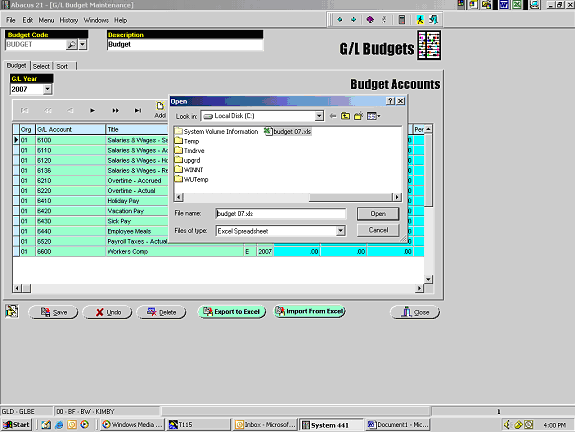
Go back to the System 441 G/L Budget Entry program and click on the “Import From Excel” button. Import the newly created Budget file. All of the figures entered on the spreadsheet will be pulled into this program.
Additional Accounts can be added using the “Add” button, or the accounts can be edited using the “Edit” button. After making any changes, save the information.
See the example below: