
The section provides an example of how the General Narrative Notes-Comments Routine can be used in practice.
In this illustration, an Food Allergy Note will be created -- in this case, within Client Maintenance -- and later shown 'projected/routed' to Food/Beverage Point-of-Sale (in the Dining Room only -- not the Snack Bar, and certainly not to the Golf ProShop).
Pictured below is the Client Maintenance screen (Application: Member-Client, Juncture: Client-Member), with Member 1200-000 selected:
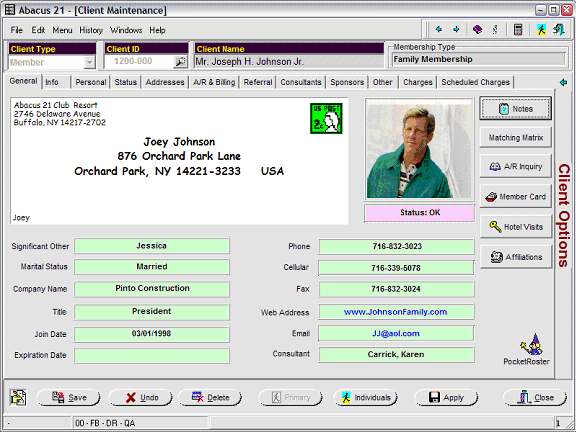
The Generalized Comments Routine is invoked by hitting the 'Notes' Button in the upper-right of the screen above, giving:
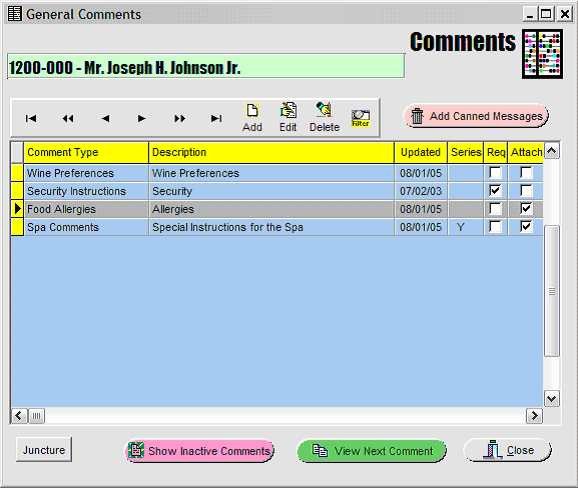
The above screen shows that four different Comment Types have been already created for Mr. Joseph Johnson.
Note that the sequence order of these Comment Types is governed by the Display Order established in General Notes Setups.
The following datafields are presented in the Grid of Comments:
Comment Type
Description: Short Description of the pertinent Comment.
Updated: Date last created/modified.
Series: Indication of 'Y' if there is more than one 'thread' to the Comment (ie, it has sub-Comments).
Req: Indicates if the Comment is 'Required' to be viewed (at this Application-Juncture).
Attach: A Checkmark indicates that the Comment has an Attachment.
Add - Used to create a new Comment.
Edit - Used to edit the highlighted Comment.
Delete - Used to delete (make Inactive) a Comment.
Filter - Used to search/filter Comments.
Add Canned Comments - Allow the operator to recall a canned (skeletal) Comment and 'fill it in' or edit it with respect to the application.
Canned Comments are useful for recalling 'forms' that can be 'filled out'.
Canned Comments must be created (and declared to be 'Canned') in General Comments Setups.
Juncture - Displays the Application & Junction associated with this General Comment 'trigger point':
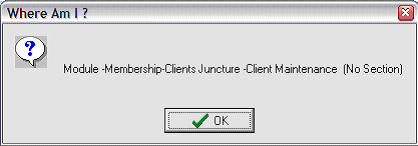
Application (Module): Membership-Clients
Juncture: Client Maintenance
Section Reference - No Section Required at this Juncture.
Show Inactive Comments - Show deleted Comments that are set (in General Comments Setup) to be suppressed, but available via a Button request.
View Next Comments - Scrolls to the next Comment Line (if necessary).
Close - Closes the Comment Screen (and returns to the respective Application that called it).
Selecting the 'Food Allergies' Comment Type (by double-clicking the Comment Line or highlight it and hitting the Edit button on the Navigation bar) expands to:
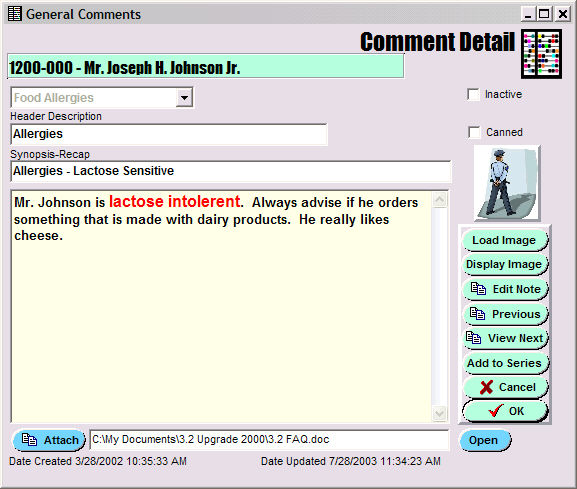
Comment Type (prompt not shown) - Select the Comment Type from the list of Administrator-defined Types that have been activated at this Application-Juncture.
Header Description: Enter a Short (Sub-Title) Description for this Comment.
Synopsis-Recap: Enter a brief synopsis of the Comment. (This defaults to the Header Description.)
Comment (prompt not shown): Enter a rich-text Narrative Comment-Note.
Right-Click in the Comment Box for more elaborate editing (noting the use of rich-text):

Hit 'File-Save/Exit' to save your changes.
Inactive - This is checked if the Comment being viewed is 'deleted' (but being unsuppressed as per General Comments Setups).
Canned - this is checked if the Comment is intended to be a 'Canned' (re-useable form) Comment.
It is also possible to create a Series of sub-Comments associated with a Comment -- such as done for example for Spa Comments:
Note that in the display Grid of Comments above that there is a 'Y' in the Series column associated with Spa Comments -- meaning there is more than one (sub) Comment -- that is, a Series.
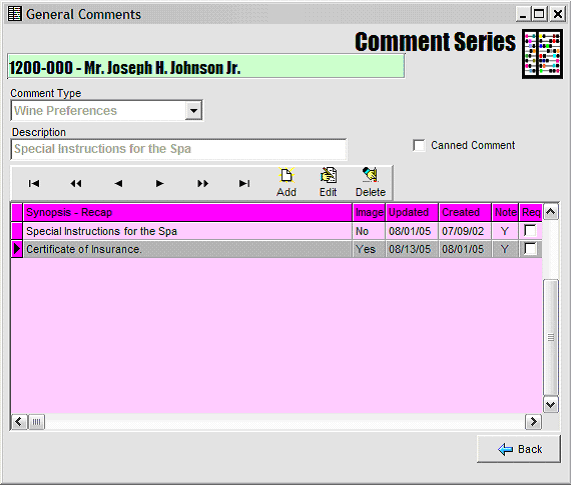
Note that there are two sub-Comments in the Series.
In the screen below, the 'Certificate of Insurance' Comment is exploded:
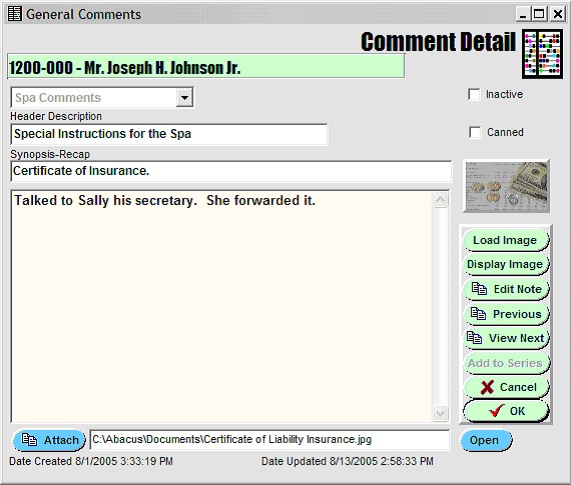
Attachment - Hit Attach to 'attach' -- via browse & select -- a file (such as a Word Document, Excel Spreadsheet, Image File, Adobe pdf, html file, etc.
Open - Opens the 'attached' file (assuming the file extension is explicit enough).
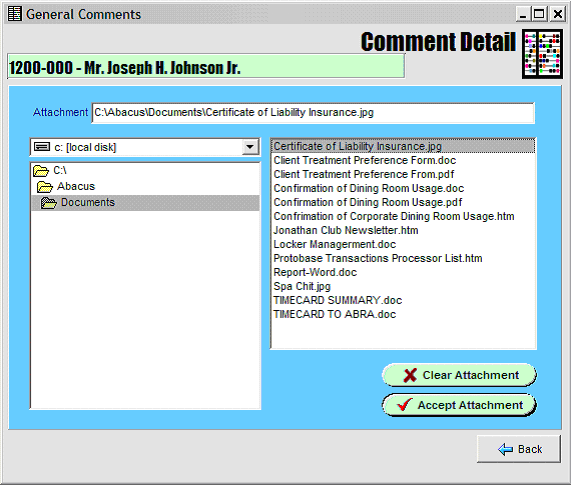
Clear Attachment - Clears the currently 'attached' file reference.
Accept Attachment - Accepts the reference file attachment.
Back - Returns to the Comment Edit screen.
An image can also be attached:
Load Image - Used to browse & select an image.
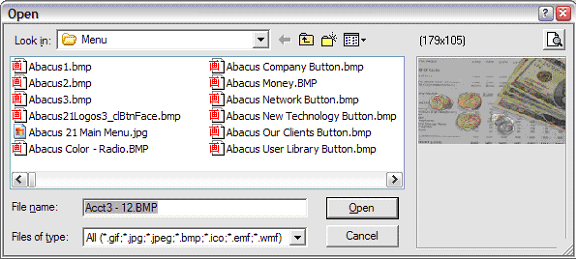
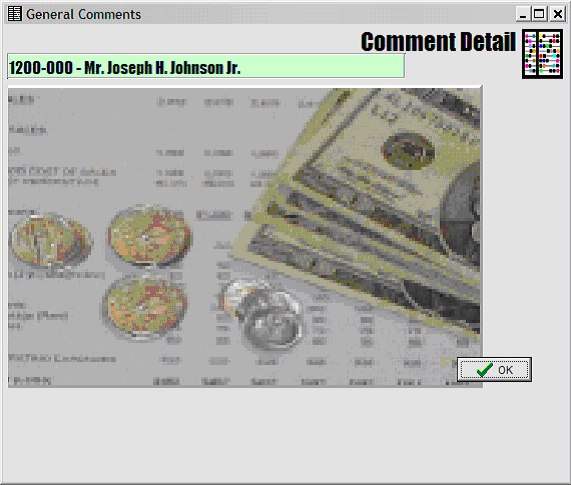
Display Image - Enlarges the thumbnail rendition of the image.
Edit Note - Allows you to edit the display Comment.
Previous - Shows the previous Comment (if there is one).
View Next - Shows the next Comment (if there is one).
Add to Series - After calling up a Comment (or sub-Comment of a Series), hit this Button to create or add to the Series of sub-Comments associated with the parent-Comment.
Cancel - Cancels all changes since last saved.
OK - Accepts all changes since last saved.
Multiple Comments of the same Comment Type -
Note that it is also possible to create more than one comment of a particular Comment Type, for example, adding a Security Instructions Comment of a different variety:
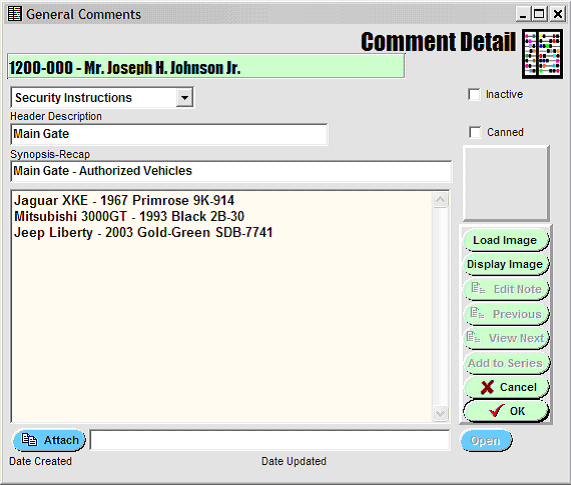
Which then gives the following Comment Display Grid:
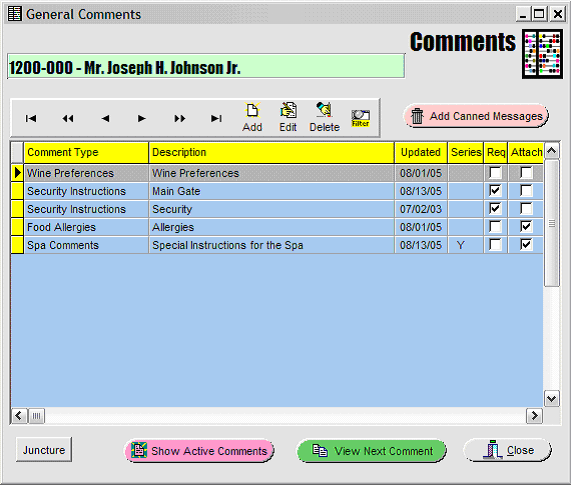
It is important to note that each of the two Security Instructions Comments can have its own unique Series of sub-Comments.
Thus you can have a series of (Security) Comments related to entrance procedures at the Main Gate, and another series of sub-Comments related to general Security.
