
Staff Types allow you to establish 'categories' of Staff... primarily for differentiating Privileges to do certain functions within particular Applications.
Staff Types are created within Abacus 21 Application Modules:
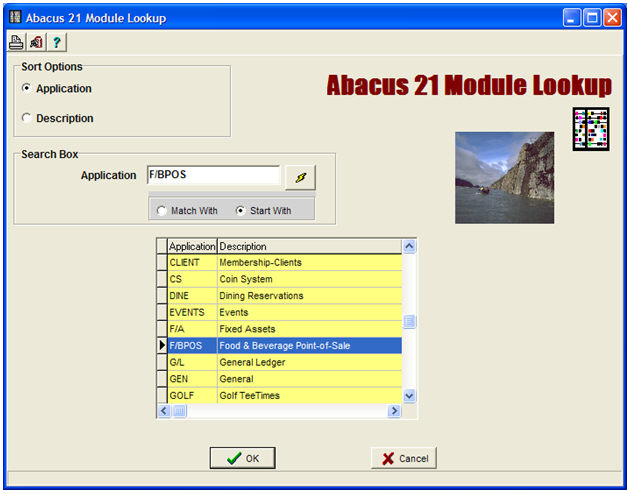
Below is an example of the Staff Types that have been created within the F/BPOS (Food & Beverage Point-of-Sale) Application Module:
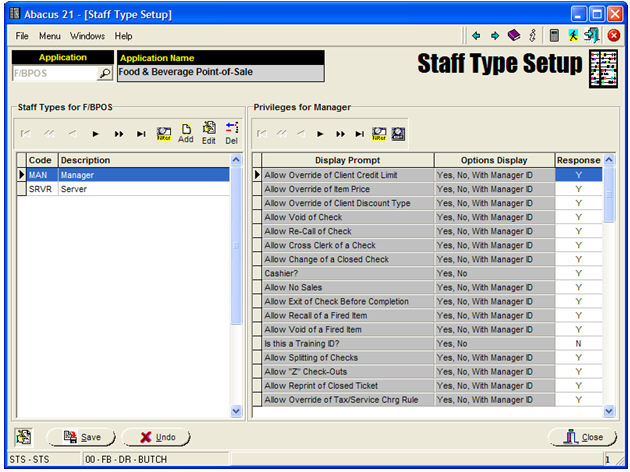
Notice that the following set of Food/Beverage Point-of-Sale 'Staff Types' have been structured:
Manager (shown above... with some of the F/B-Manager Type's Privilege Settings visible)
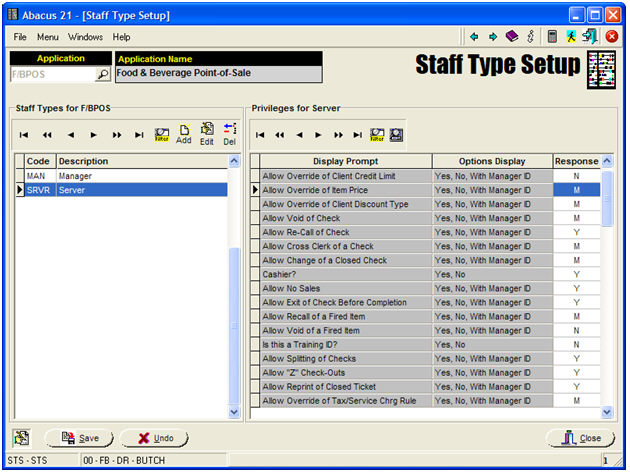
Server (shown below... with some of the Server Type's Privilege Settings visible)
Note: Application Module definitions and their respective Privilege Sets are Abacus-established and can not be altered by the End-User. Please contact Abacus 21 if you feel additional Privileges should be introduced to the System.
Within an Application a Staff Person's ability to perform certain functions are controlled by 'Privileges' that are associated with the Staff-Type that is affiliated with the Staff-Password that they use to enter the Application.
Notice that in the above examples that the Manager's Type includes almost across-the-board 'Yes' privileges... whereas the Server's Type has a mixture of Y, N, and M classifications.
For each pre-defined Privilege (from the Privilege set pre-defined for Application-Module), there are typically three allowable responses:
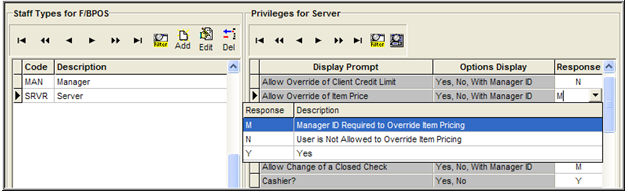
Y = 'Yes'... a person of this Staff-Type is ALLOWED to do that particular function (within the Application).
N = 'No'... a person of this Staff-Type is emphatically NOT ALLOWED to do that particular function (within the Application)... and is immediately "rejected" in their attempt (with a second recourse -- namely, getting a Manager's 'temporary' override permission to do the function 'on this occasion').
M = 'Manager Override Possible'... a person of this Staff-Type is NOT ALLOWED to do that particular function -- BUT is given the opportunity to call a (suitably-privileged Manager) to interject their MANAGERIAL APPROVAL for the person's doing this particular function on this particular occasion.
A particular Privilege setup (for the Server-Type's "Allow Override of Item Price" -- that is, can they do a 'Comp' [for Food/Beverage] or 'Markdown' [for Retail] within Point-of-Sale... F/B-POS in this case) looks like the following:
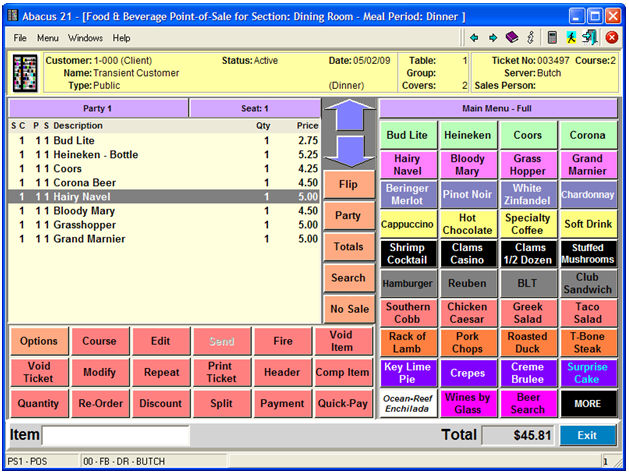
Let's assume a Staff person is a Server... and signs into F/B Point-of-Sale.... and attempts to do a 'Comp' (an Item Price Charge) on an Item on the GuestCheck -- in the example below the 'Hairy Navel'.
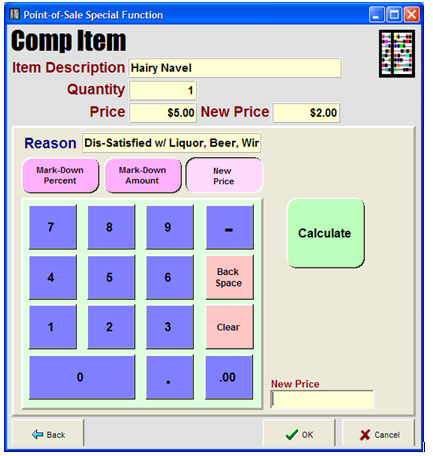
If the Privilege for "Allow Override of Item Price" is 'Y', they will be allowed to do the 'Comp' Price Change (after having provided an appropriate Reason) -- in this case lowering the Price from $5.00 to $2.00 (due to the fact that the Customer was Dis-Satisfied with the Liquor-Beer-Wine-Cocktail... undoubted because it didn't include sufficient Navel-Hair !!!):
If the Privilege for "Allow Override of Item Price" is 'N', they will not be allowed to do the 'Comp' Price Change... and will encounter the following 'Dragon' message:
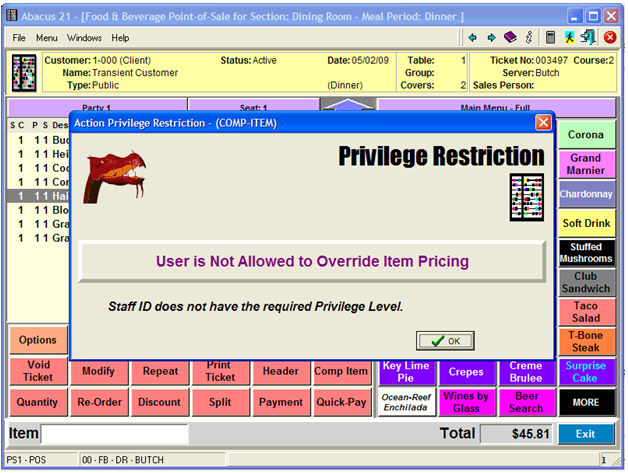
The precise interpretation of the Dragon-Message is that the Staff-Password that was used is linked to a Staff-Type whose Privilege Set does NOT include the right to "Override Item Pricing" -- that is, they do not have the privilege to do a Comp.
The Server must 'acknowledge' this Message by hitting OK... and they will be returned to the POS Screen without having been able to change the Item Price.
If the Privilege for "Allow Override of Item Price" is 'M', they will encounter the following 'Dragon' message:
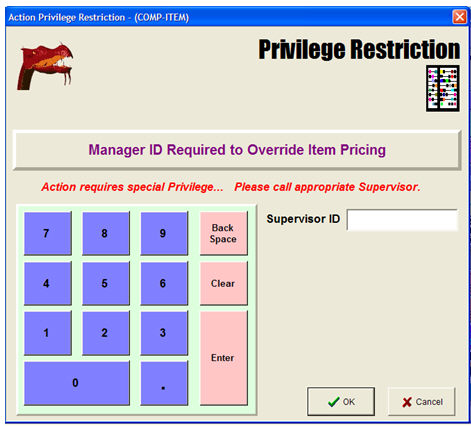
... in which case, if the Server still needs to get the Item Comp'd, they would have to call over a Staff person (that is, presumably a Manager) whose Staff-Password (Supervisor-ID) has an affiliated Staff-Type which has the "Allow Override of Item Pricing" set to 'Y':
Once the above-privileged Manager enter his/her Staff-Password into the Supervisor-ID field above, the Point-of-Sale program proceeds to the 'Comp Item' Screen:
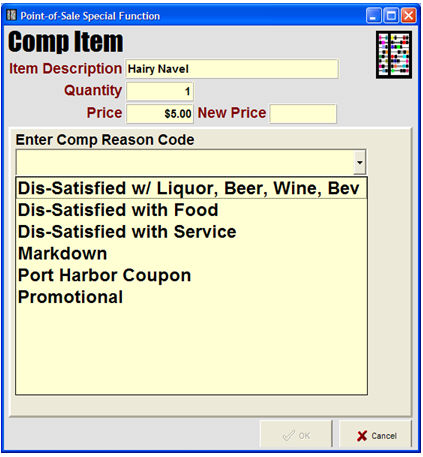
... and the Manager (or Server) can make pick the appropriate Comp-Reason... and change the Price appropriately (as shown in the previous example).