
The A/R Factoring module within System 441 allows Members to pay their Accounts Receivable Statement balance automatically each Statement Cycle by a Credit Card payment.
Only Members who have requested this service will have a charge billed to a Credit Card.
Members that have a negative Accounts Receivable balance or a balance of zero will not be billed -- and will not have a Credit posted to their account.
This description is intended to provide the setup information necessary for using the A/R Factoring process within Abacus 21 System 441 software.
It is assumed that all Credit Card software (Shift4 or Protobase) setups have been completed and the Credit Card software is functioning normally.
For further assistance with setting up credit card software to be interfaced with System 441 software please contact the Abacus 21 Support Department.
Note: A Retail Merchant ID is required for use with A/R Factoring.
The overall steps involved in setting up and utilizing A/R Factoring involve:
After all of the necessary setups are completed for the Credit Card software, a new Credit Card Interface must be defined in System 441.
In this sample, the Shift4 Retail Interface is used. (Abacus 21 also supports SDC's Protobase.)
Use the Quick Jump option within System 441 to go to the RS1-RSS menu:
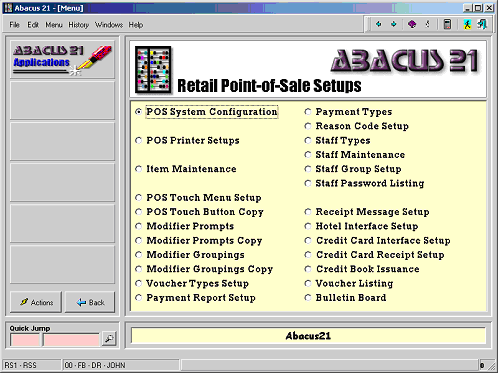
Select the “Credit Card Interface Setup” option from the menu:

Credit Card Interface Code and Description: In the example above, the Credit Card Interface Code is "S4FACT" and the Description has been set to “Shift4 A/R Factoring”.
Interface Directory: Directory that the Credit Card interface will use to return response files from Shift4 to Abacus 21.
Executable Directory: Directory where the S4CCI.EXE executable is located.
This is normally C:\Program Files\Abacus 21\System 441 Client\Programs.
Merchant ID: The Credit Card Merchant ID as assigned by Shift4.
Timeout: Amount of Time (in seconds) that Abacus 21 will wait for a response from the Shift4 interface. If no response is received in this time, a timeout response will be generated... and the transaction will be declined.
IP Address: The IP Address of the Workstation/Server where the Shift4 NetAPI is installed.
Serial #: Serial Number as assigned by Shift4. This field should not be set unless instructed to do so by Abacus 21.
API Password: Shift4 NetAPI password as assigned by Shift4. This field should not be set unless instructed to do so by Abacus 21.
After setting up the Credit Card Interface, a Payment Type to be used by the Accounts Receivable Factoring process must be defined.
From the RS1-RSS menu, select the “Payment Types” option.
Input a Payment Type Code and Description. In the example below, the payment type is set to ARF and the Description is set to A/R Factoring Payment:
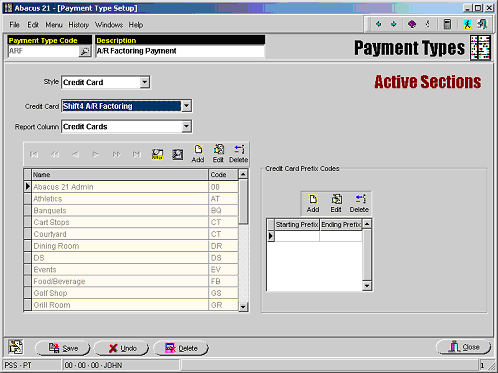
Style: For A/R Factoring Payment Types, this must be set to “Credit Card”.
Credit Card: Credit Card Interface to use with this Payment Type. This will be the Credit Card Interface that was defined earlier in the setups.
Report Column: Which report column should be used for reporting these Payment Types. (See Payment Type Report Setup.)
Starting Prefix: Starting number sequence for Credit Cards of this type. For A/R Factoring payments, this field should be left blank.
Ending Prefix: Ending number sequence for Credit Cards of this type. For A/R Factoring payments, this field should be left blank.
Activating a Section for A/R Factoring -
After the Payment Type has been defined, a Section must be set up for this Payment Type to be used with the A/R Factoring process.
Click on the “Add” option:
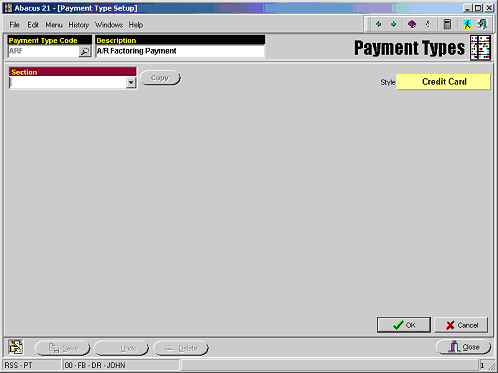
At the Section prompt, click on the drop-down arrow to select the Section to be used with the A/R Factoring process. In the example below, the Abacus 21 Admin Section is used:

Credit Card Verification Required: This option must be checked for all A/R Factoring Credit Card Payment Types.
Organization: G/L Organization for posting payments.
Account: G/L Account Number to use for posting payment information.
All of the interface setups have now been completed. The next step is to setup the Credit Card information for any Members who wish to utilize the A/R Factoring process to pay Accounts Receivable balances.
Use the Quick Jump option within System 441 and input CS-CS.
Input the Client ID to modify. In this sample we will change the setups for Member 33333-000 to utilize the A/R Factoring payment process.
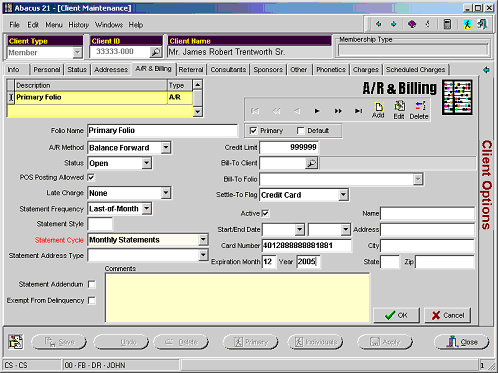
Select the Primary Folio and click on the Edit button:
Settle-To Flag – For members that wish to use A/R Factoring, this must be set to Credit Card.
Active – If this option is checked, the Credit Card information will be used when the A/R Factoring process is run. If this option is not checked, the A/R Factoring process will skip this Member.
Start/End Date – Normally these fields will be left blank. However, if a Member wants to only have a Credit Card payment active in the system for a specified amount of time, these fields can be used to determine the starting and ending dates.
Card Number – Credit Card number to use for the A/R Factoring process.
Expiration Month/Year – The Credit Card expiration date month and year for the Credit Card number listed above.
Name – Name as Displayed on the Credit Card. Optional Field.
Address – Billing address for the Credit Card. Optional Field.
City – Billing Address City for the Credit Card. Optional Field.
State – Billing Address State for the Credit Card. Optional Field.
Zip – Billing Address Zip/Postal Code for the Credit Card. Optional Field.
After all of the information has been entered, click on the OK button and then click on the Save button to save changes.
This process will need to be completed for all Members that wish to use the A/R Factoring payment process.
The last setup needed is to setup Staff Members to use the A/R Factoring and Cash Receipts applications.
The Staff person will need to be setup to use the “Cash Receipts Entry” Application within Staff Setup.
For further information on setting up a Staff person, please contact the Abacus 21 Support department.
Use the Quick Jump option within System 441 and input ARP:
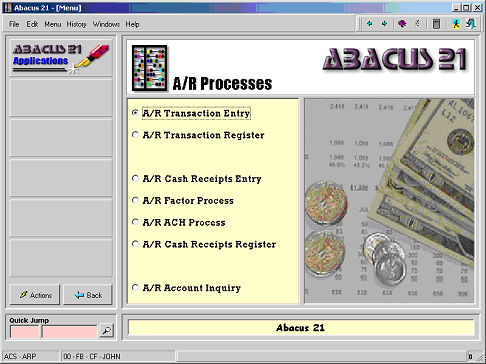
Select the “A/R Factor Process” option from the Menu:
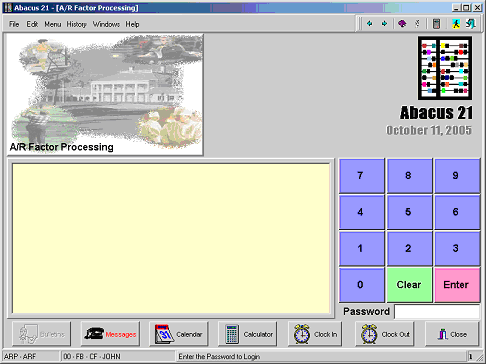
At the Password prompt, enter the Staff ID password to use for the A/R Factoring process -- and click the Enter button:
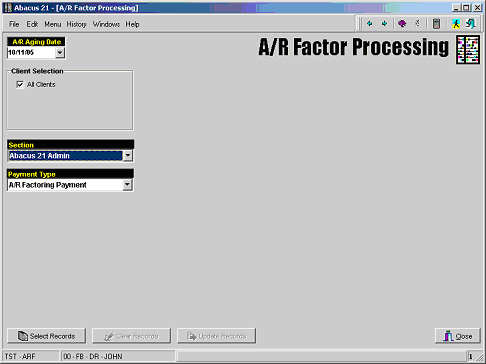
A/R Aging Date – The Date to use for calculating the amount owed. This option defaults to the System Date. Normally this will be set to the last day of the Statement Cycle.
Client Selection:
All Clients – The default option is to select all Clients that are set up to utilize the A/R Factoring payment process.
Client Range – If the “All Clients” option is not selected, the system will prompt for a starting and ending Client ID. This will select any Members who have signed up for the A/R Factoring payment process within the specified Client ID range.
Section – Section to use when posting payments for the A/R Factoring payment process.
Payment Type – Payment Type to use for the payments posted with the A/R Factoring payment process. This will be the payment type defined within the setups previously.
After selecting the Aging Date, Client range, Section, and Payment type, click on the “Select Records” button to select all records that meet the Client Selection Criteria:
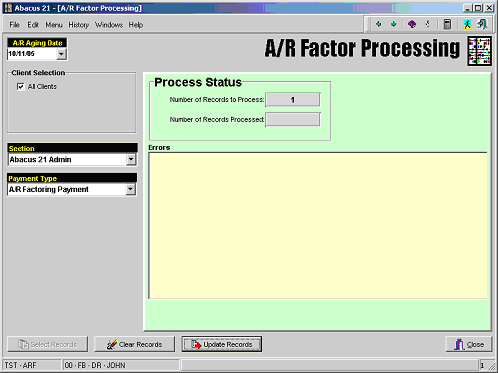
The system will display the number of records selected. To cancel the selection, click on the “Clear Records” option. If the selected records are correct, click on the “Update Records” button.
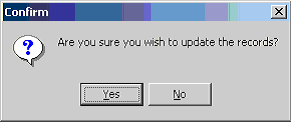
The system will display the prompt above. To continue processing, click on the “Yes” button; to cancel processing, click on the “No” button.
System 441 will now process the Credit Card transactions for each record selected. When the process is complete, the below message will be displayed:
Click on the “OK” button to complete the A/R Factoring selection process.
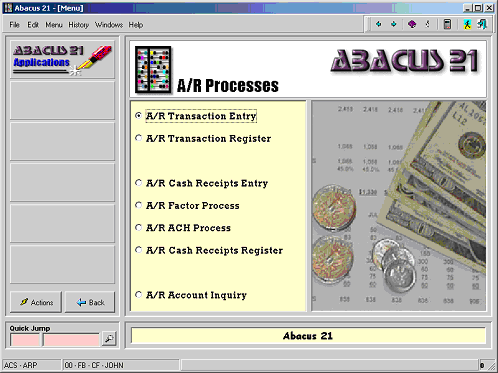
Select the “A/R Cash Receipts Entry” option from the menu to verify the information that has been posted properly to the Member accounts.
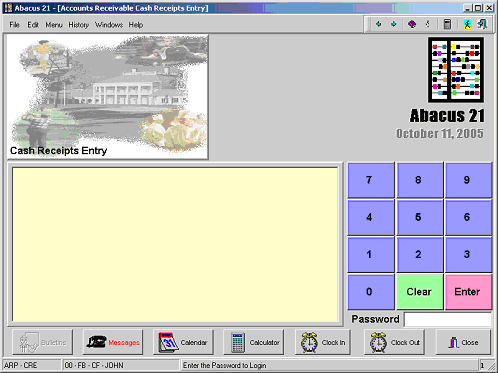
At the Password prompt, input the Staff Password and click on the “Enter” button.
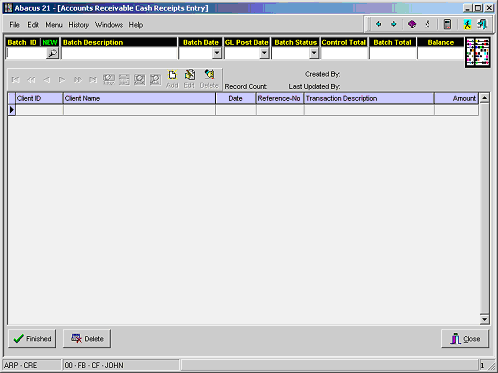
Click on the Search button (magnifying glass icon) to search the Cash Receipts entries batches. The batch for the A/R Factoring payment process will be displayed as “Factoring Process for…” with the Aging Date selected in the A/R Factoring selection screen. Select the batch and click the “OK” button:
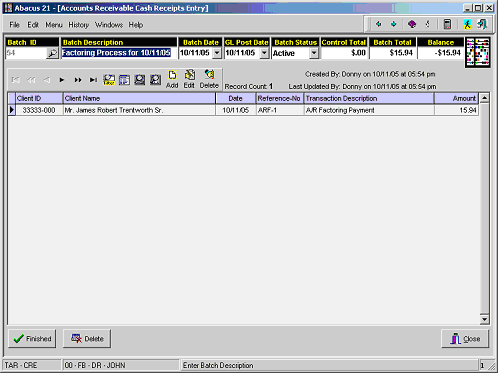
All payments that were processed without errors will be displayed on the screen.
To see the detailed information for a particular payment, double-click on the transaction record:
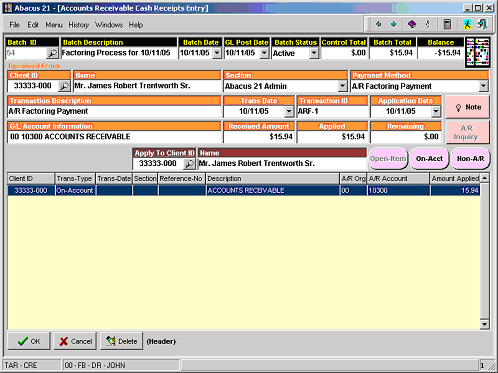
Click the “OK” button to return to the main screen.
When finished reviewing the information, click on the “Finished” button to return to the ARP menu.
From the ARP menu, select the “A/R Cash Receipts Register” option:
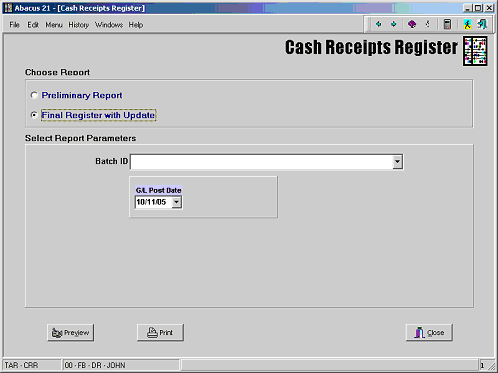
Preliminary Report – Prints a preview of the Cash Receipts Register, but does not actually post the information to the Member accounts.
Final Register with Update – Allows the user to print a Preview Report -- and also allows the user to update the payments to the Member accounts.
Batch ID – Cash Receipts Batch number to post.
G/L Post Date – Date to be used for posting the transactions to the General Ledger Journal Entry Interface Files.
After printing the final Register and inputting the Verification ID (if activated), the A/R Factoring Payments will be updated to the Member A/R accounts.