
This section describes how to create Employees (Staff) within Abacus 21's System 441.
Application Assignments Tab (includes Staff-Passwords)
Services Tab (includes Staff Service Qualifications)
Valid Job Classes Tab (for Scheduling & Timekeeping Purposes)
Supervisor Tab (for Scheduling & Timekeeping Purposes)
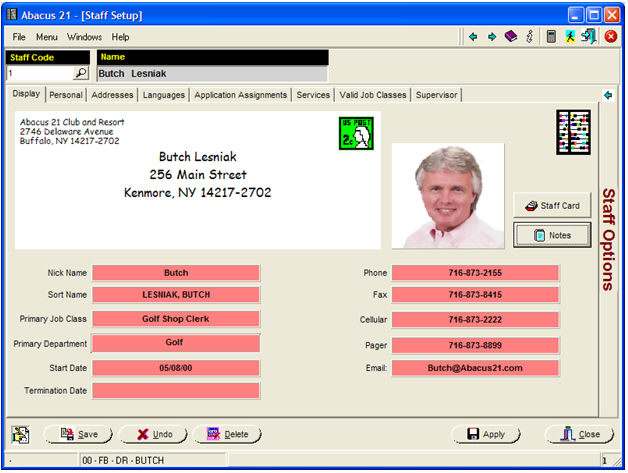
The above screen show the basic information related to the Staff Employee... including their Display Address... and provides navigation to the other segments of their Staff information.
Staff Card Button -
This is used when 'producing', 'linking', 'looking up', or 'disabling' a Staff Photo-ID Card for the Employee.
This Feature has an option to dynamically control the Camera, the Card Printer, the Magnetic Strip (or SmartCard) encoding-linkages, and capture of the Photo-image... and registration of it with respect to Staff-Person Photo.
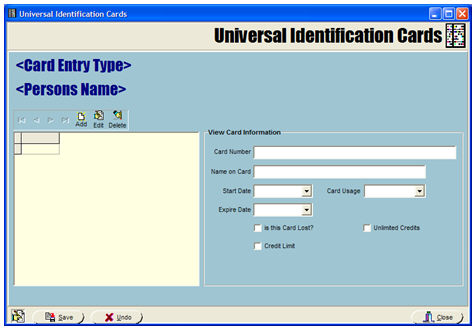
Abacus 21 System have the following Staff ID Identification Mechanisms:
Magnetic Strip Cards
SmartCards & Vicinity Cards
Proximity Cards
Barcoded Cards
Fingerprint
These can be used in the following Abacus 21 Staff Recognition Applications:
Staff Recognition for operating Point-of-Sale
Manager Recognition for operating Point-of-Sale
Employee Recognition as a Customer to Point-of-Sale
Staff Check-In
Timekeeping
Staff Access Control
See Photo-ID Cards (for instance).
The Cards identify a person. They do not supply a Password.
In POS for example, when you use these Cards, the program takes the Card Swipe information and finds the associated Staff person (thru the Card Cross-Reference file).
The program then checks to see if the person has any Passwords defined for the application.
If there is only one, it is then selected and used.
If there are multiple, the program will display the Staff-Type associated with each Password (the Passwords themselves are not displayed) and the User selects the desired one.
A Manager may have a Manager-Privilege Password that is only used for special circumstances and a lower privilege Password for normal use.
The actual Password that is assigned in this program is usually a more User-friendly password. They would manually enter that Password if the Card is misplaced, unreadable, or the Card Reader is defective or simply not available.
If you do not want Servers-Clerks-Managers to be able to access POS without the Card, simply create a Password and do not publish it to the Users.
The Card is linked to the Staff person by hitting the "Staff Cards" button on the General screen.
For linking Cards in 'Static' mode (not automatically "producing" the Cards with Abacus modules), you can hit the 'Add' button.
At that point you do put the focus in the Card Number field and swipe the Card.
Staff Notes -
This button invokes Abacus 21's Comment-Narrative Routine for Staff Maintenance
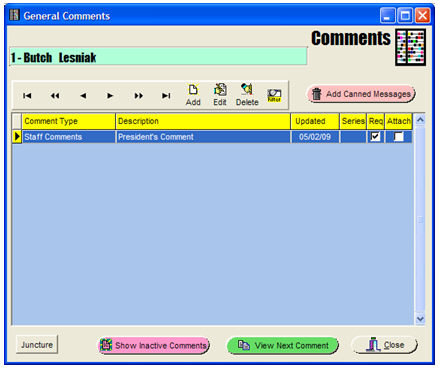
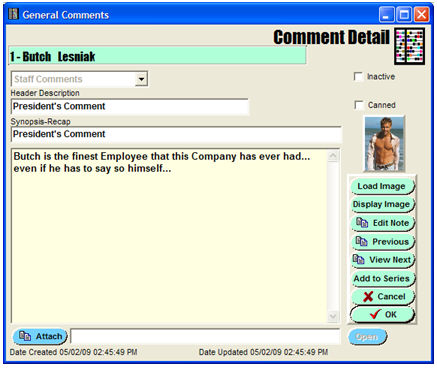
Currently only the Spa-Module Juncture has been connected to Staff Maintenance.
See Comment-Narrative Routine for further information.
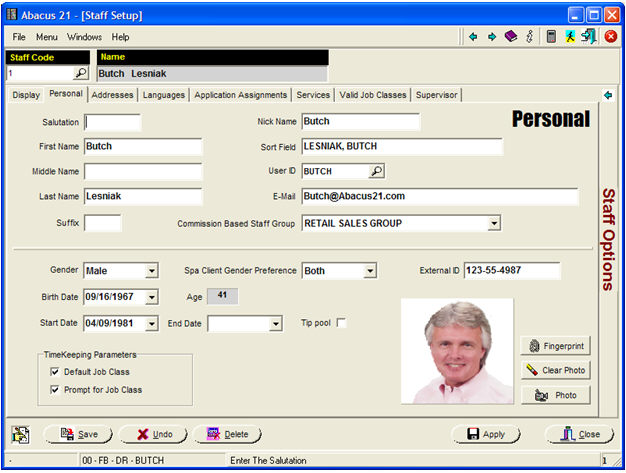
This screen houses the basic Employee Personal Information.
Salutation: Mr. Mrs. Ms. etc. Optional.
First Name: Optional, but suggested.
Middle Name: Optional.
Last Name: Required
Suffix: Jr. Sr. II etc. Optional.
Nick Name: Required (as it shows up in places such as Point-of-Sale). If no Nick-Name, fill it in the same as First-Name.
Sort Field: Required. This is actually the 'string of characters' that gets used when doing "searches" for the Employee Name.... and it gets filled in automatically (for a new Staff Person entry) with an upper-case combination of the Name 'parts' loaded in the upper-left of the screen. It can be changed as desired.
User-ID: Optional. Filling this in with a valid User-ID links the User-ID to this particular Staff-ID.
In Applications that utilized an implied Staff-ID (namely an application should as A/R-Transaction-Entry) that typically involves only a small number of potential Users -- such as only the A/R-Clerk and the Controller -- but nonetheless needs a Staff-affiliation in order to invoke Staff-Password privileging within the module... this feature becomes useful.
When a User (signed in under their User-ID) attempts to use such an Application, the program realizes that a Staff-Password is needed... and checks to see if this particular User-ID has been cross-referenced to a Staff-ID.
If it has not, the program prompts for a valid Staff-Password.
If it has, the program automatically checks the linked-to Staff-ID to see if a valid Staff-Password has been set up for the Application.
If it has (and there is only one valid one), the program assumes legitimate operation under that Staff-Password (and its privileges).
If there is more than one valid one, the program prompts the User to pick one of them... and proceeds under its premises.
If there are no valid Staff-Passwords set up for that particular Application for that Staff-ID, the program rejects usage of the Application... and prompts for a valid Staff-Password.
See also Staff to User-ID Connection.
Email: Optional. This is the general Email for the Staff person. Each (Street) Address also can accommodate an Email.
Commission-Based Staff Group: Optional. This is used only if you have licensed Abacus 21's Commission System (the sophisticated version).
This attaches the Staff Person to an overall Staff-Group for Commission purposes. (Individual variations on Commissioning for this particular Employee [or Contractor] can be instrumented amidst their overall Commission-Group structure.)
See Commissions System for further information.
Gender: Male, Female, Don't Know. Required.
Spa Client Gender Preference: Male, Female, Both. Optional. Only pertinent within the Spa-Fitness-Court System... and implies a "restriction" (that will invoke a warning if broached) that the Staff-Person prefers to only cares to accept Service-Appointments with Males, Females, or Doesn't-Have-a-Preference (Both).
External-ID: Optional. A free-format field. (In the 'old days' used for Social-Security Number).
Birthdate: Optional. Calculates the Age automatically.
Start Date: Optional. The Date the Employee started.
End Date: Optional. The Date the Employee was terminated.
If filled in, these Start & End Dates are used to check the authenticity of the Staff Person's "recognition" as a legitimate Employee (in the various Applications that are tuned to check for this).
Tip Pool: Optional. Check if this Employee is eligible to be part of a Tip Pool (typically for F/B or Spa-Fitness).
Timekeeping Parameters - Optional.
Used only if you have licensed Abacus 21's Timekeeping Module.
Default Job Class: Yes or No. In TimeClock Sign-In, defaults in the Employee's Scheduled Job-Class (instead of prompting for one).
Prompt for Job Class: Yes or No. In TimeClock Sign-In, allows the Employee to select from amongst their Valid Job-Classes (because they commonly 'float' amongst multiple, pre-assigned Job-Classes).
Fingerprint Button - Optional. Requires a license for Abacus 21's Staff-Fingerprint-Recognition module.
Allows for the Fingerprint Enrollment-Registration or Look-Up of Staff Fingerprints.
Staff Fingerprint Recognition be invoked for Point-of-Sale Usage, Timekeeping, Check-In, and Access Control.
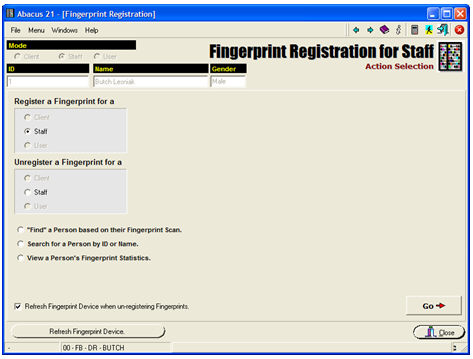
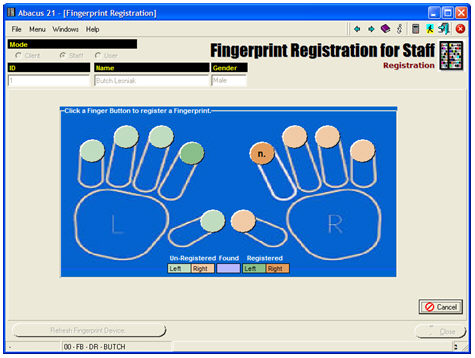
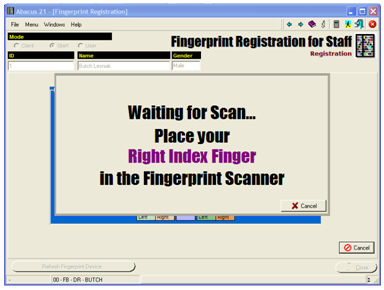
For more information, see Fingerprint Enrollment & Recognition.
Clear Photo - Clears out the Staff-Person's Photo.
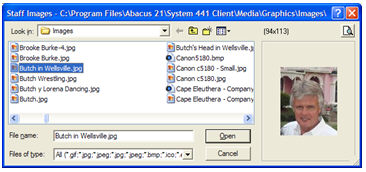
Photo Button - Allows the manual attachment of a Photo-image to the Staff-Person.
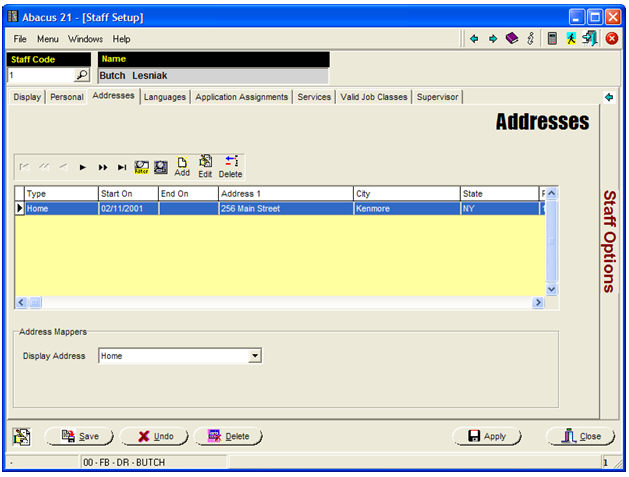
The above Address grid shows all of the Employee's pertinent Addresses.
Address Detail -
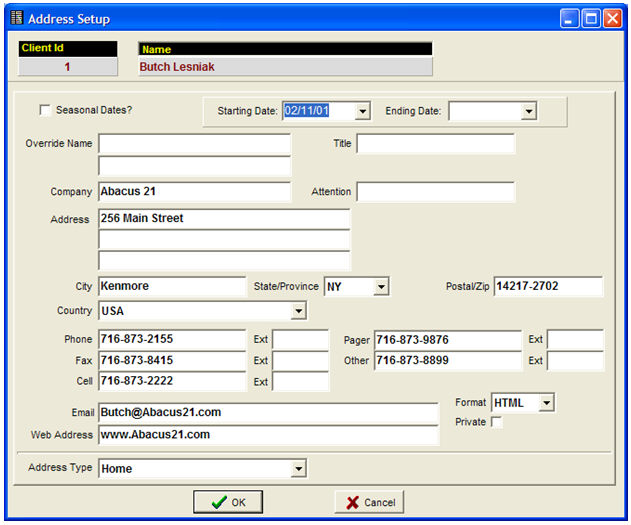
Seasonal Dates? Optional. Allows the effective Start-Date and End-Date of this Address to disregard the 'Year'.
Example: Seasonal Date? Checked (Yes)
Start Date: 04/01
End Date: 10/31
Meaning: Year-in-and-Year-out this particular Address is valid from April 1st thru October 31st (unless superseded by some other Address).
Starting Date: MM/DD/yy (where yy is not needed for Seasonal Dates)
Ending Date: MM/DD/yy (where yy is not needed for Seasonal Dates)
Override Name: A surrogate Name (two lines worth) for the Employee -- that will be used instead of the normal Name when used in conjunction with this Address. Optional.
Address: Street Address (three lines worth). Optional.
City: City. Optional.
State/Province: State or Province. Optional.
Postal/Zip: Postal Code or ZipCode. Optional.
Country: Country (can optionally be validated). Optional.
Contact Numbers (free format -- inclusive of Extensions): Optional.
Phone
Fax
Cell
Pager
Other
Email: Email Address. Optional. Email Format: (HTML or Text) Private: Check if Email-Address is to be non-published.
Web Address: The Staff-Person's Web Address. Optional.
Address Type: Declare the 'Type' of Address this is.
See Address Types for further information.
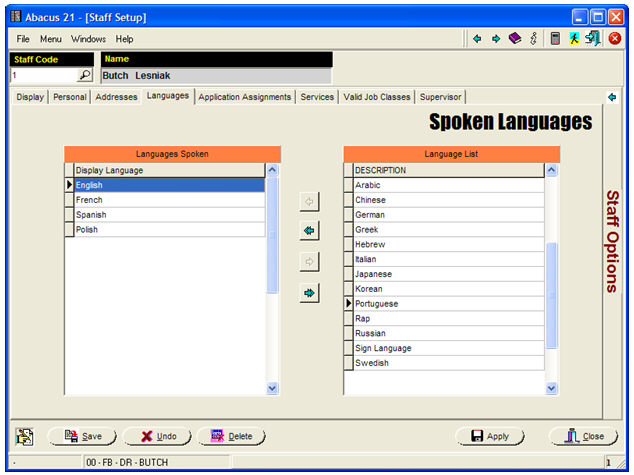
Optional. Used for "personalizing" Staff Service qualifications within the Spa-Fitness-Court modules.
Select (from the Language List on the right-side) those Languages Spoken by the particular Staff-Person.
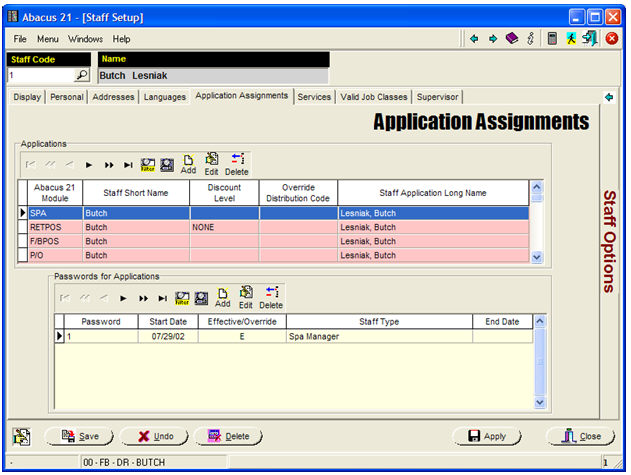
Staff Application Assignments are used to declare a Staff-Person to be eligible to be 'reference' with particular modules... and, further, if they have a Staff-Password set up, to actual 'use' the Application (within the Privilege Set associated with the Staff-Password's Staff-Type).
In the above example, creating a 'SPA' Module reference for the Staff-Person implies that:
The Staff-Person can be recognized as a Staff-Person who participates with the Spa-Module (as a Therapist, Trainer, Pro, etc.) -- assuming they are 'Scheduled as Available' and are 'Qualified to perform the respective Services'.
The Staff-Person 'may' be able to utilize the Spa Application -- IF they have a valid Staff-Password created (see below).
Application Assignment Detail -
The example below relates to the Food/Beverage Point-of-Sale Module:
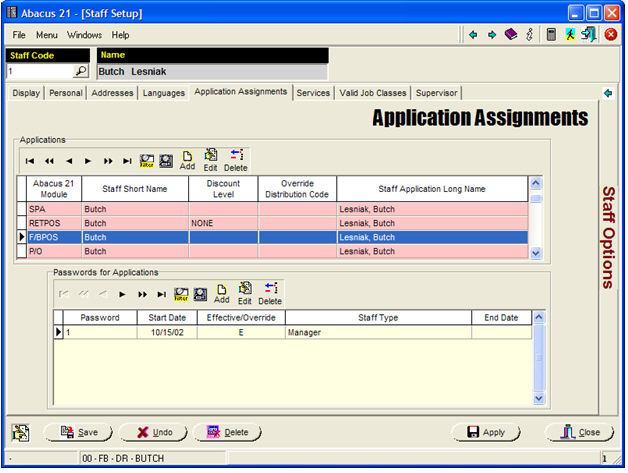
The following screen shows the setup of a Staff-Person for eligibility with respect to an Application:
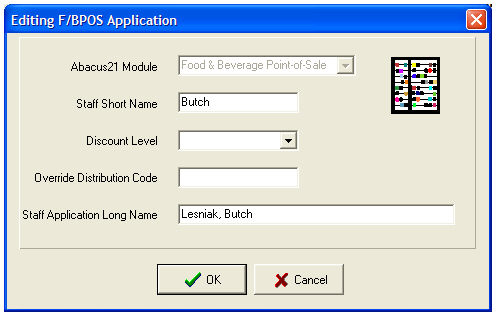
Staff Short Name: The (vernacular) 'Name' that will be displayed within the Application. Required.
Discount Level: Optional. (For future use)
Override Distribution Code: Optional. (For future use)
Staff Application Long Name: A longer-version of the Staff-Person's Name (to be used in this Application). Required. Defaults from the Staff-Name.
If the Staff-Person is also to be entitled to 'use' the Application, then a Staff-Password needs to be created:
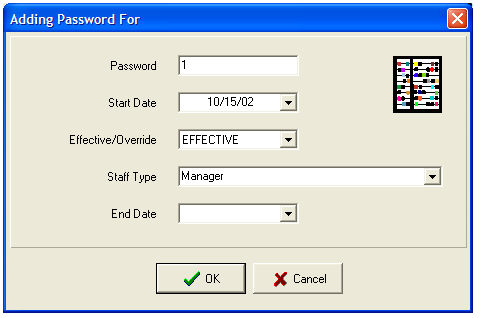
Password: Create a unique (to this Application) alphanumeric Password for the Staff-Person. Required.
Start Date: Enter the Date that it is pertinent for this Password to be Active. Required.
Effective/Override: Required. Select if Start-Date associated with this Password is to be considered:
Effective - "Effective" as of that Date and until superceded by another (subsequent) Effective-Date or its reign Ends (End-Date occurs) or is 'overridden' on a particular (Override) Date (to be resumed after that Override-Date).
Override (on that Date) - Overrides any prevailing Effective Date's Password on only that particular Override-Date (or until its End-Date) -- after which the prevailing Effective-Date Password resumes precedence.
Effective and Override Dates (and their durations) can be used to 'activate' personnel for limited timeframes... such as making a normal Server the temporary 'Manager-of-the-Day' while the normal Manager is on vacation.
Staff Type: Select the Staff-Type that is pertinent for that Staff-Person's Staff-Password for the span of the Password's Effective-Date duration or Override-Date duration.
End Date: Optional. Enter an explicit End-Date for the Effective or Override duration.
Services (Qualifications) Tab -
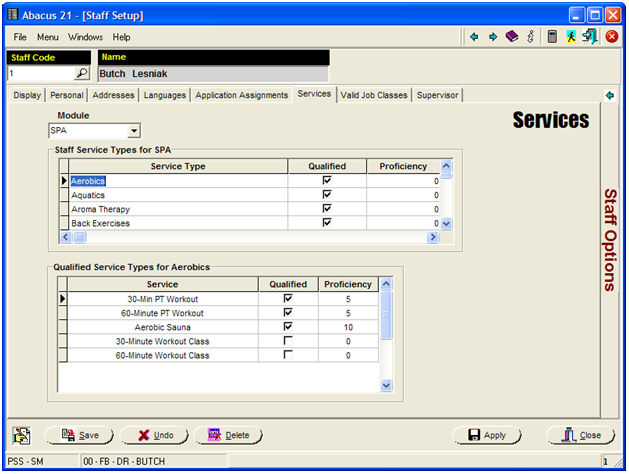
This section is used to establish the Service Qualifications of the Staff-Person -- used principally in Abacus 21's Spa-Fitness-Courts modules.
In the above example, Staff-Person is qualified to do Aerobics in general... but only suitable for 30-Minute & 60-Minute PT Workouts and Aerobic Saunas.... not Class work.
Module: Select the pertinent module. Required (if you are setting this up at all).
Note: In order to utilize these Service-Qualifications, suitable Module-specific Service-Types and Services need to be apriori set up.
Service-Type Qualification -
Select the Service-Type(s) for which the Staff-Person is in general qualified to perform.
Upon initial Qualification for a Service-Type, the system will 'Qualify' the Staff-Person for all Services within that Service-Type.
Services Qualification -
Individual Services can be de-Qualified for that Staff-Person... or (for that matter) re-Qualified.
A 'Proficiency' Level (1 to 10, Optional) can be associated with the Staff-Person's prowess in performing a specific Service -- and these are used within certain modules to sort-and-filter for suitable personnel.
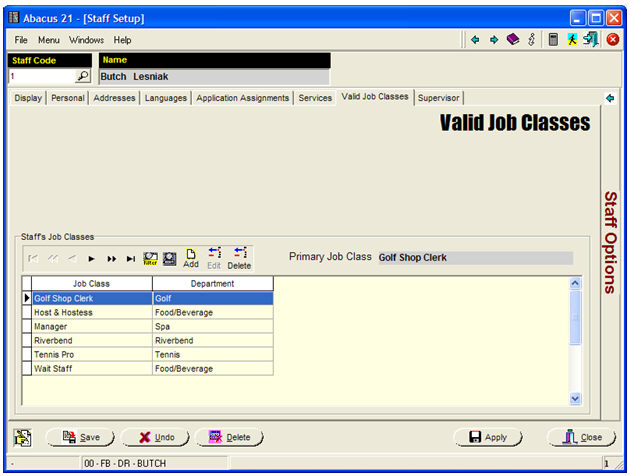
For Staff Availability Scheduling and/or Timekeeping, define the list of 'valid' Job Classes for the Staff-Person.
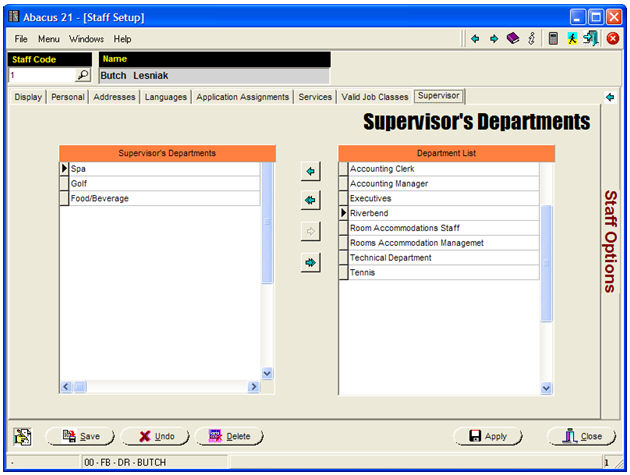
If this Staff-Person is to be considered a "Supervisor", select the Departments from the right-side 'Department List' to be under the purview of the Supervisor (Supervisor's Departments on the left-side).
There are two purposes for this:
The Timekeeping System allows the Supervisor to edit TimeClock entries for any Employee time recorded within his supervised Departments -- and to get Labor Report for all Departments under the Supervisor's jurisdiction.
Employee Scheduling (Availability) edits are controlled by Departmental (Job Class) jurisdictions.